When someone else in your office is typing in a conversation, BrainHi shows it to you in real time. This guide is for office staff and explains where the notice appears and when it goes away.
What is it for?
Several people can work the same conversation at once. The notice lets you know a teammate is already replying, so you can wait and avoid the patient getting two answers.
Do I need to turn anything on?
No. The notice works on its own and needs no setup.
Step 1: Open Conversations
In the menu, click Conversations.
Step 2: Check the conversation list
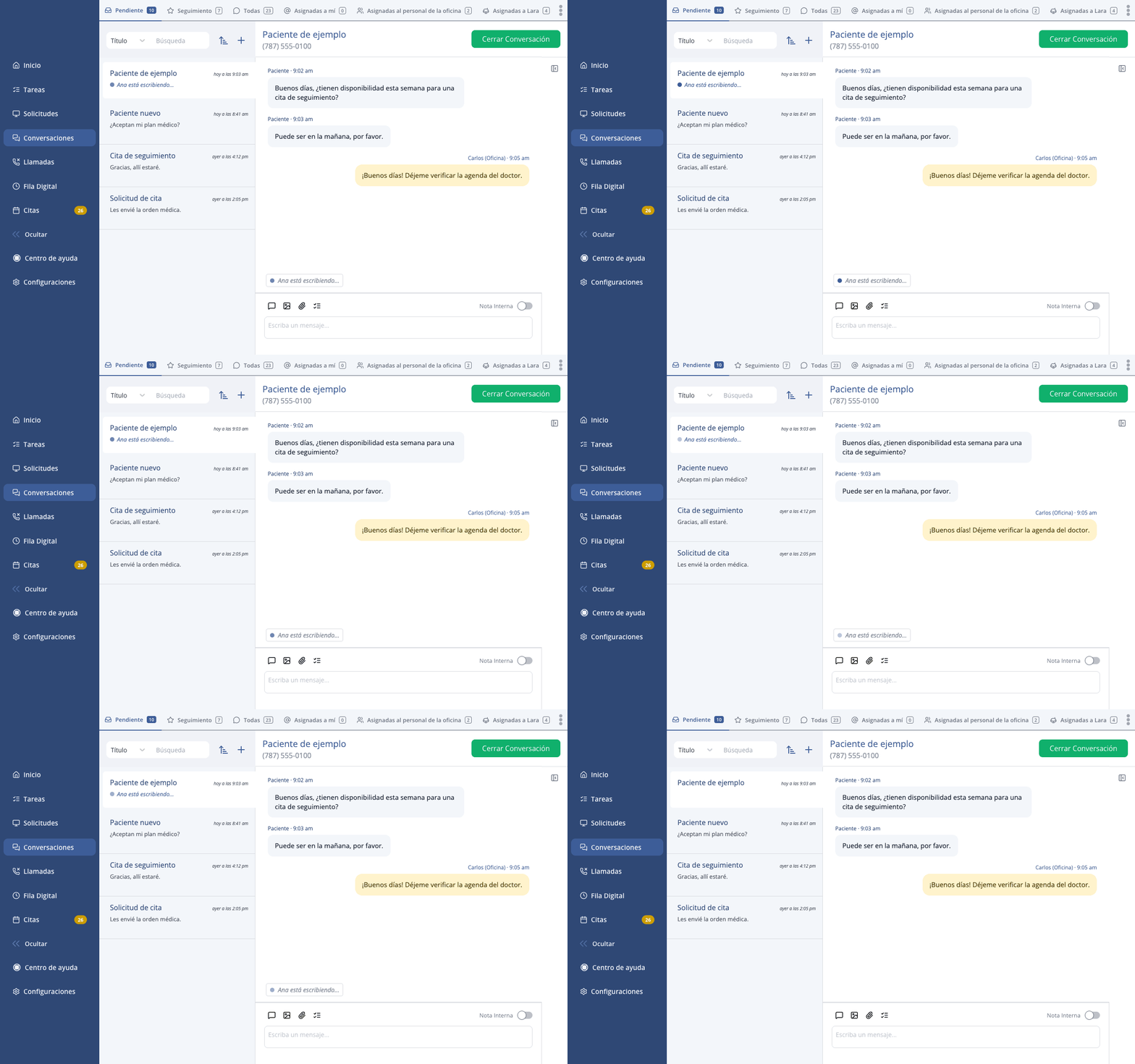
If a teammate is typing in a conversation, that conversation's row shows their name with a message bubble icon, below the preview of the last message.
Step 3: Check inside the conversation
If you open that conversation, you will see the notice with your teammate's name right above the message box, for example: Ana Rivera is typing...
When does the notice go away?
The notice clears on its own when your teammate:
- sends the message,
- deletes what they were typing,
- stops typing for a few seconds, or
- moves to another conversation.
Good to know
- You don't see your own notice. The notice only appears for the other users on your account, not for the person who is typing.
- The patient does not see this notice. It is only for staff inside BrainHi.