With the new appointment management panel, when accepting a request you directly assign the provider, service, date, and time. The patient receives a single message with all their appointment details.
Step 1: Open your pending requests
-
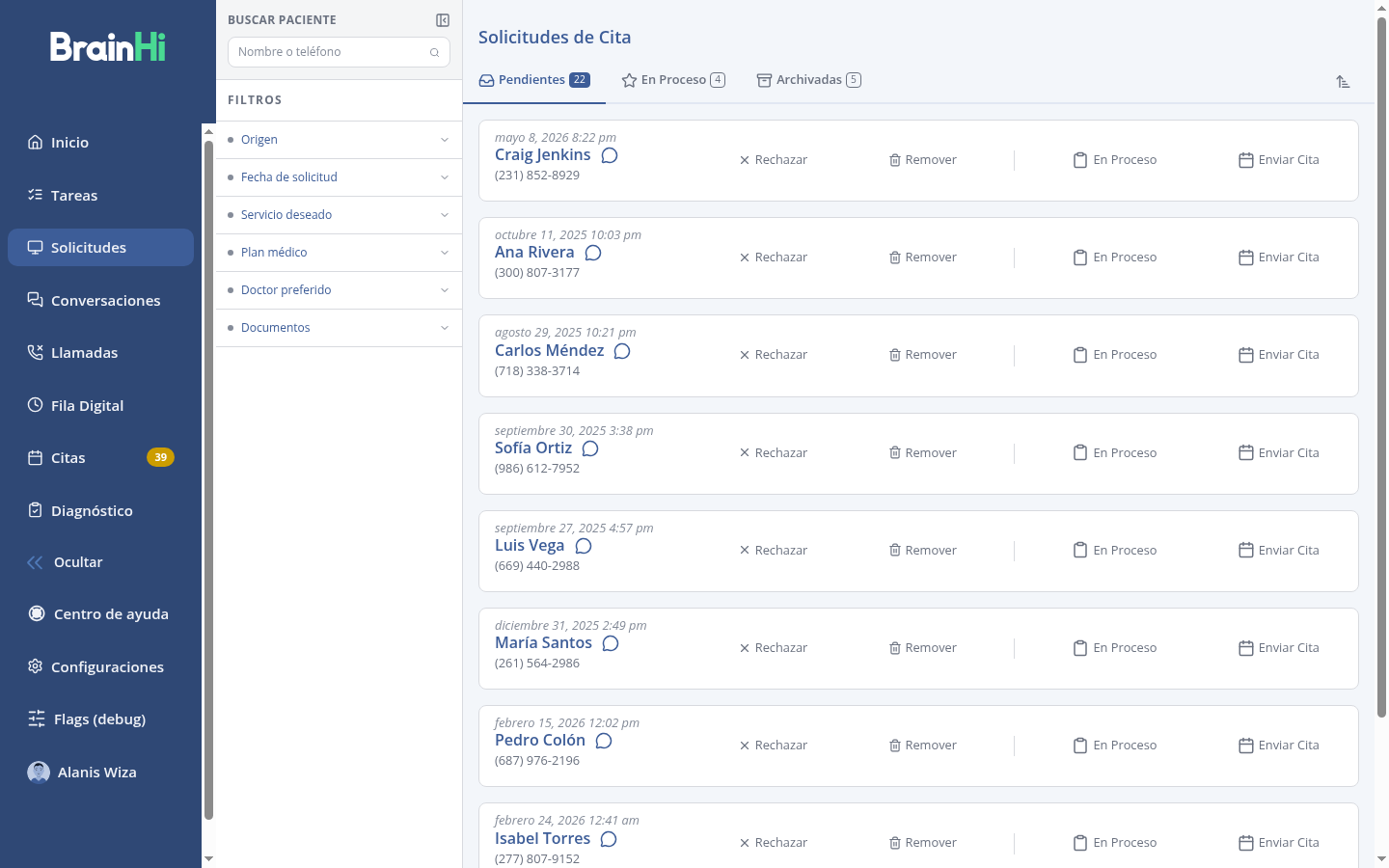
In the left menu of the portal, click Requests.
-
You will see three tabs: Pending (new requests awaiting action), In Progress (ones you marked to work on later), and Archived.
-
Use the filters on the left (desired service, medical plan, preferred doctor, documents) to find a specific request.
Step 2: Accept the request with date and time
-
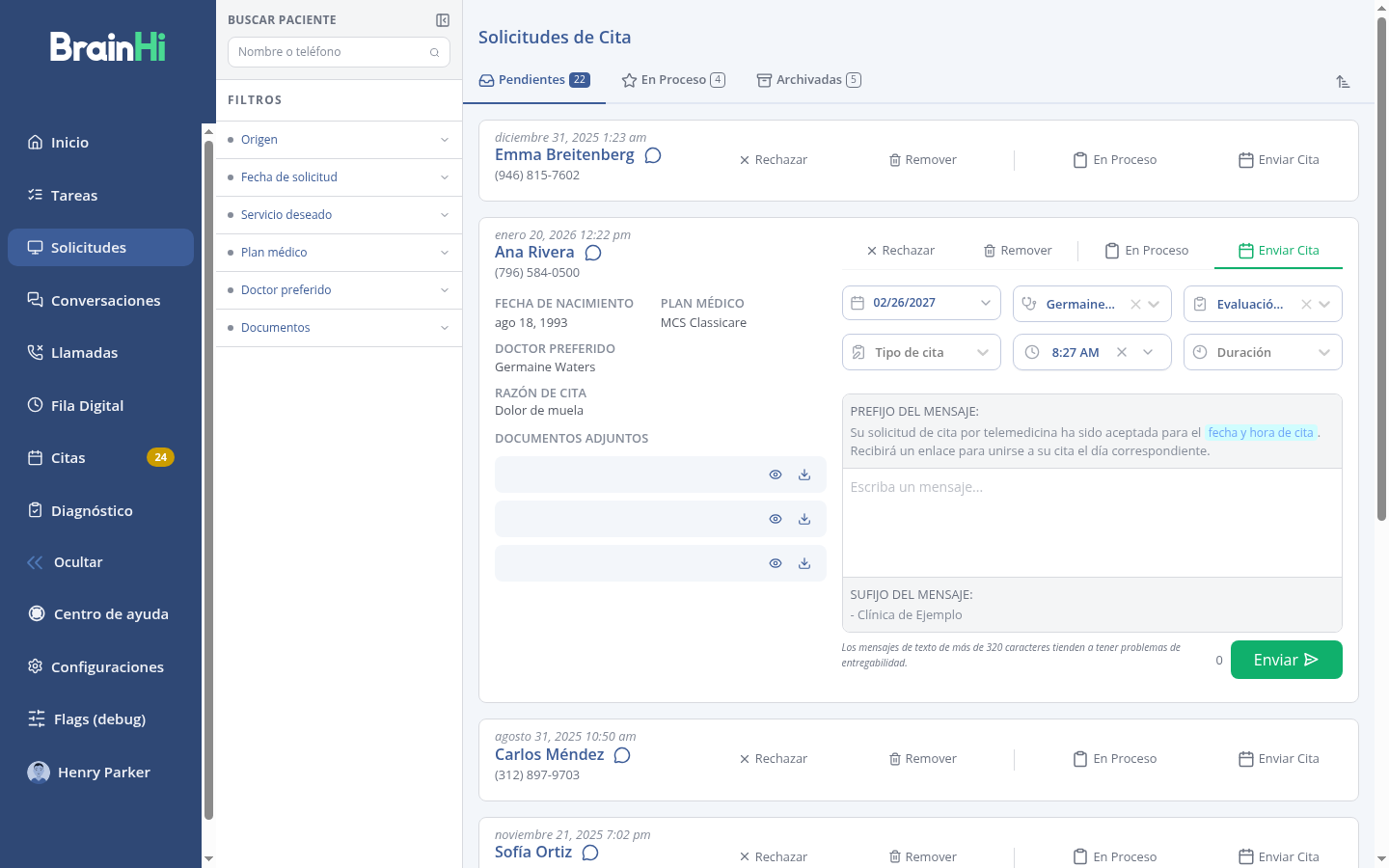
Locate the request you want to work on and click Send Appointment (the green button on the right side of the card).
-
The card expands and shows the information the patient submitted (reason for visit, medical plan, preferred doctor, attached documents).
-
Complete the appointment fields:
- Date: choose the day on the calendar.
- Provider: who will see the patient.
- Service and appointment type.
- Time and duration.
-
Review the message the patient will receive. BrainHi automatically adds the prefix with the chosen date and time; you can write an additional note if desired.
-
Click Send. The patient receives the notification with their appointment details.
Other actions available on each request
- In Progress: moves the request to the "In Progress" tab with an internal note (e.g., "waiting for medical plan confirmation"). Useful when you cannot schedule it immediately.
- Reject: notifies the patient that you cannot accommodate the request. You can include a message with the reason.
- Remove: archives the request without notifying the patient.
Why you should always assign date and time
If you accept a request without assigning a date and time, the patient receives a notification that their request was accepted without details of when their appointment is. For accounts with Proclaim we always recommend assigning the date and time when accepting, so the patient communication is complete and the appointment is correctly reflected in both systems.
Related articles