Appointment requests let your patients request an appointment through the BrainHi assistant without giving them direct access to your calendar. Your team reviews each request and decides when to schedule it. This protects the Proclaim integration because nothing enters the calendar without your approval.
Step 1: Enable appointment requests
-
Log in to the BrainHi portal.
-
In the left menu, click Settings.
-
In the settings menu, click Appointment Requests.
-
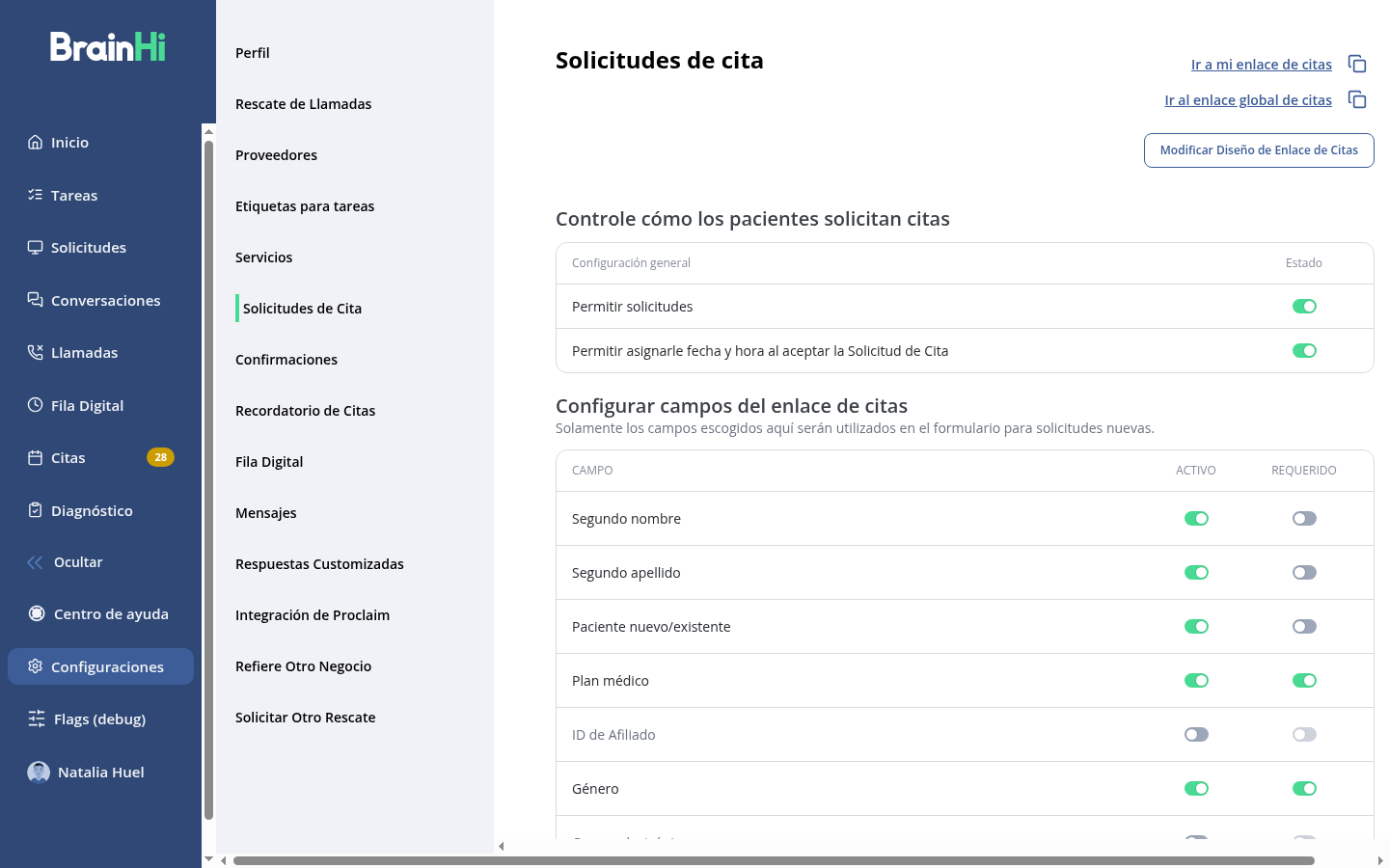
Under Control how patients request appointments, enable the Allow requests toggle.
-
Also enable Allow assigning date and time when accepting an Appointment Request. This lets you choose the day and time when accepting each request (recommended for accounts with Proclaim).
Step 2: Choose what information is requested from the patient
- On that same screen, scroll down to Configure appointment link fields.
- For each field (middle name, medical plan, gender, etc.), use the Active column to show or hide it on the form.
- Use the Required column to make the patient complete it before submitting the request.
Only active fields will appear on the form when the patient requests an appointment.
Step 3: Configure your services
-
In the settings menu, click Services.
-
Select a service from the list on the left.
-
Enable Show on appointment request form if you want patients to be able to select that service when requesting.
-
Assign the providers who offer the service (or enable All providers).
-
Define the appointment duration, intervals, and number of appointments per hour.
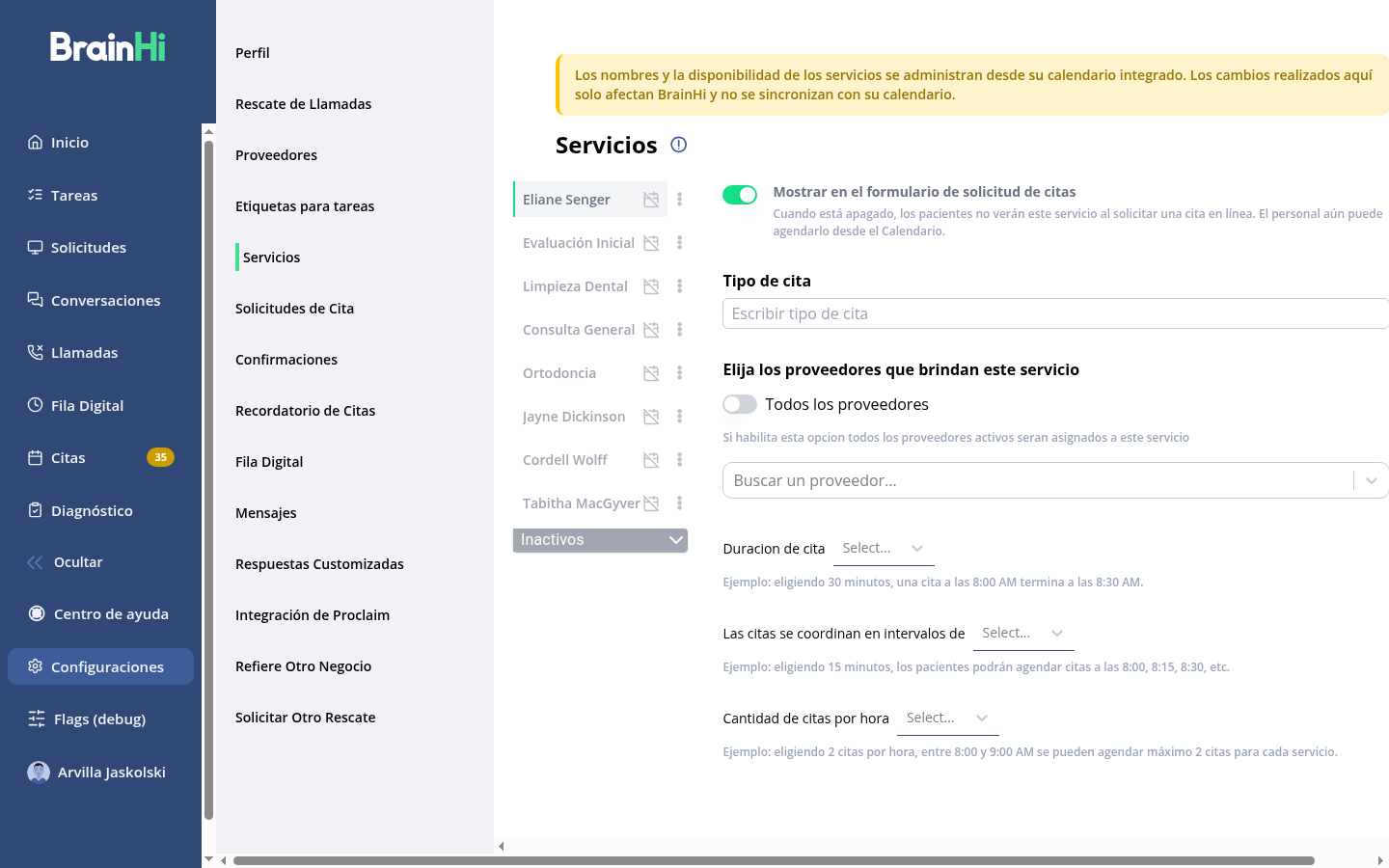
Important for accounts with Proclaim: service names and availability are managed from your integrated calendar. Changes made here only affect BrainHi and are not synced back to your system.
Step 4: Configure provider availability
-
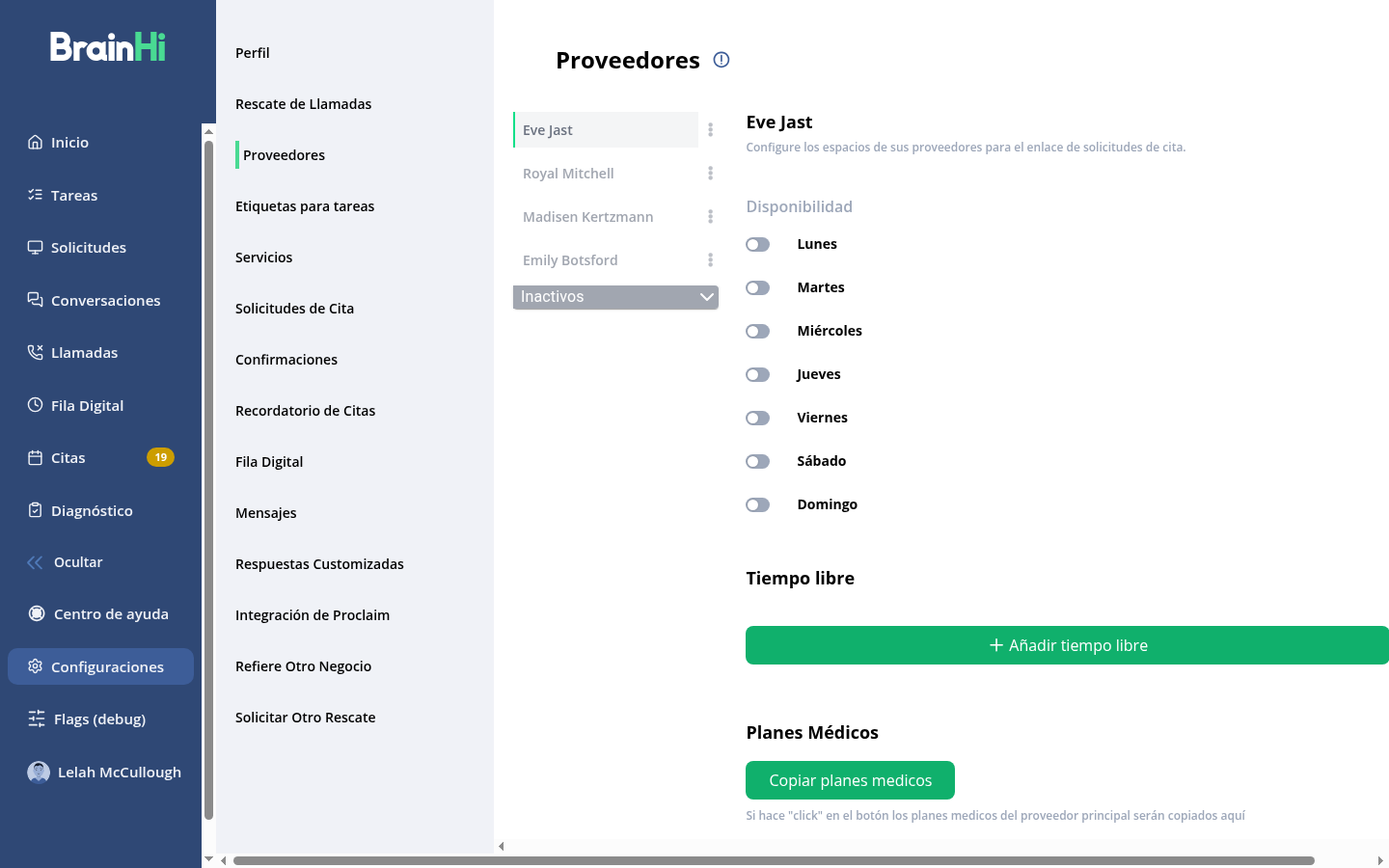
In the settings menu, click Providers.
-
Select a provider from the list.
-
Enable the days of the week they see patients and define their schedule.
-
Use Add time off to block lunches, meetings, or vacations.
Recommendations for accounts with Proclaim
- Do not enable automatic acceptance of requests. Each request must be reviewed and accepted manually so it is correctly linked to your synchronized calendar.
- Keep the list of services and providers aligned with what exists in Proclaim; this data is automatically synced from your system.
Related articles