Appointment requests allow clients to request an appointment at your office through a link sent via text message. Once you have the link configured, learn what the patient experience will be when requesting an appointment.
You have 2 ways to send the appointment link:
1. Automated Response
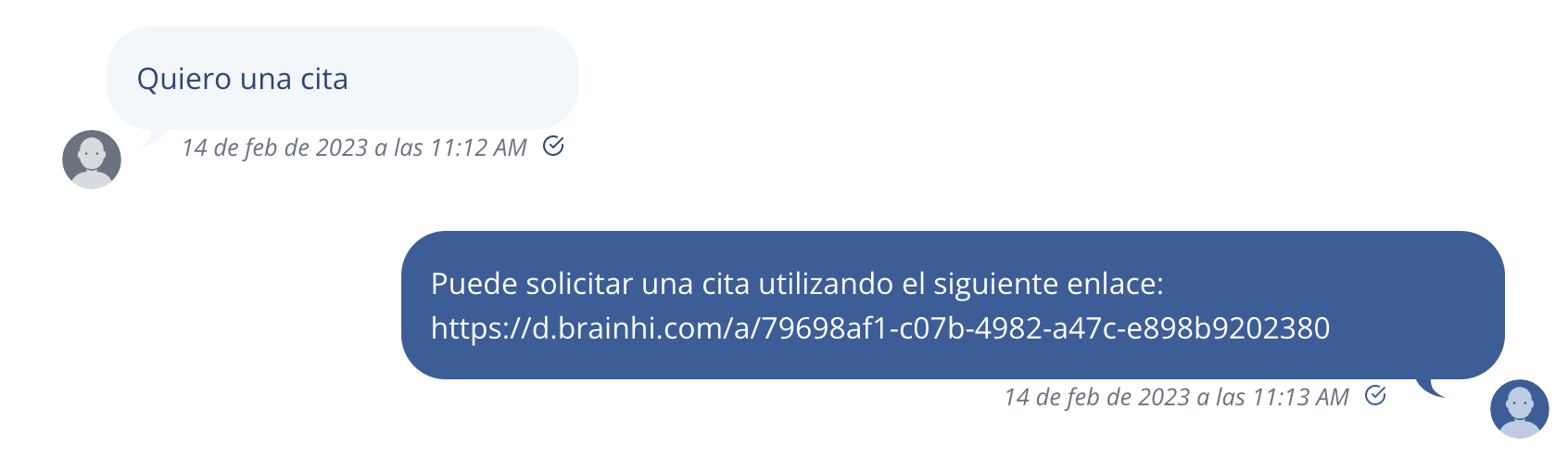
The appointment request link is sent automatically when the patient writes "I want an appointment." Our artificial intelligence system can detect that the patient wants to schedule an appointment and sends them a message with the link.
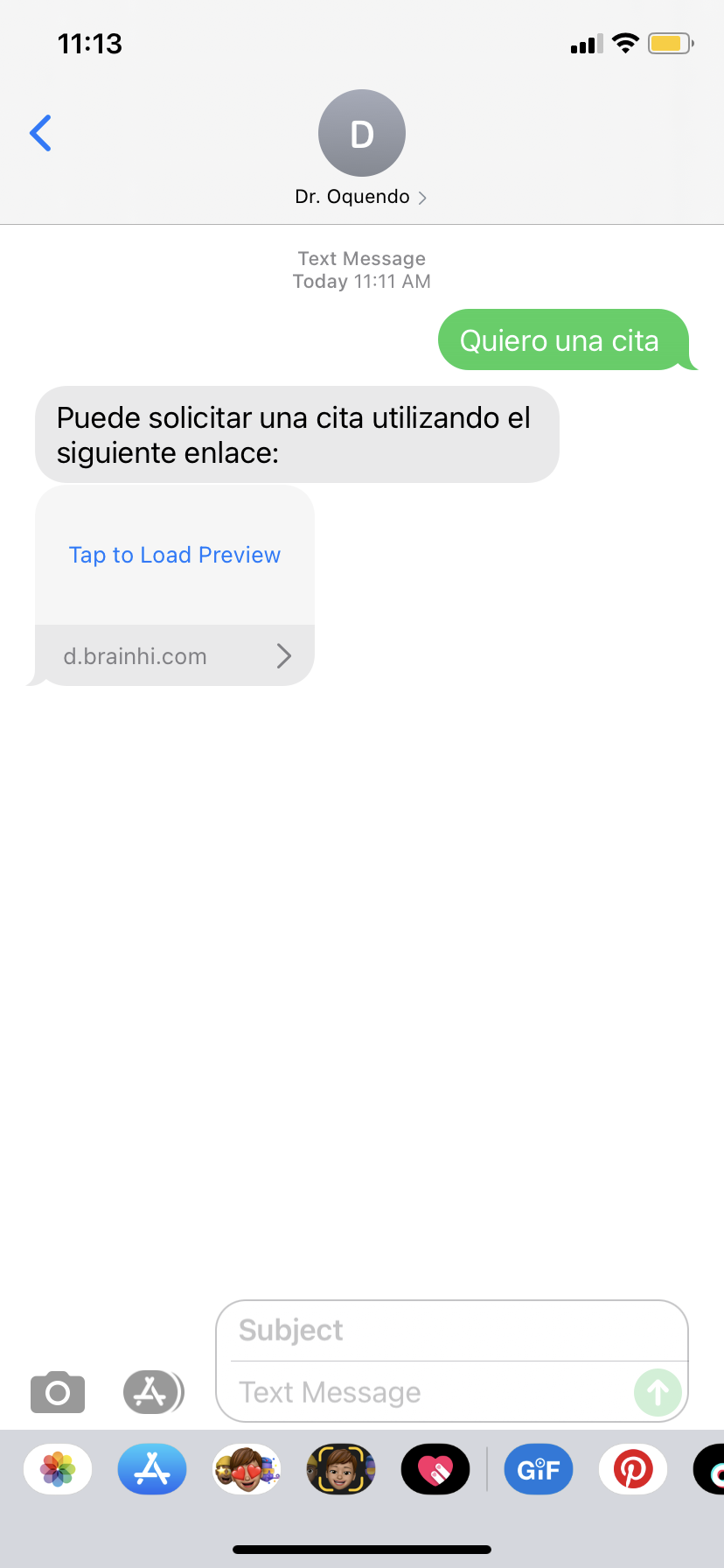
2. Send the link manually
There is a second way (3 simple steps) to manually send a link to any client so they can request an appointment. You can copy that link from BrainHi Settings, in the Appointment Requests section:
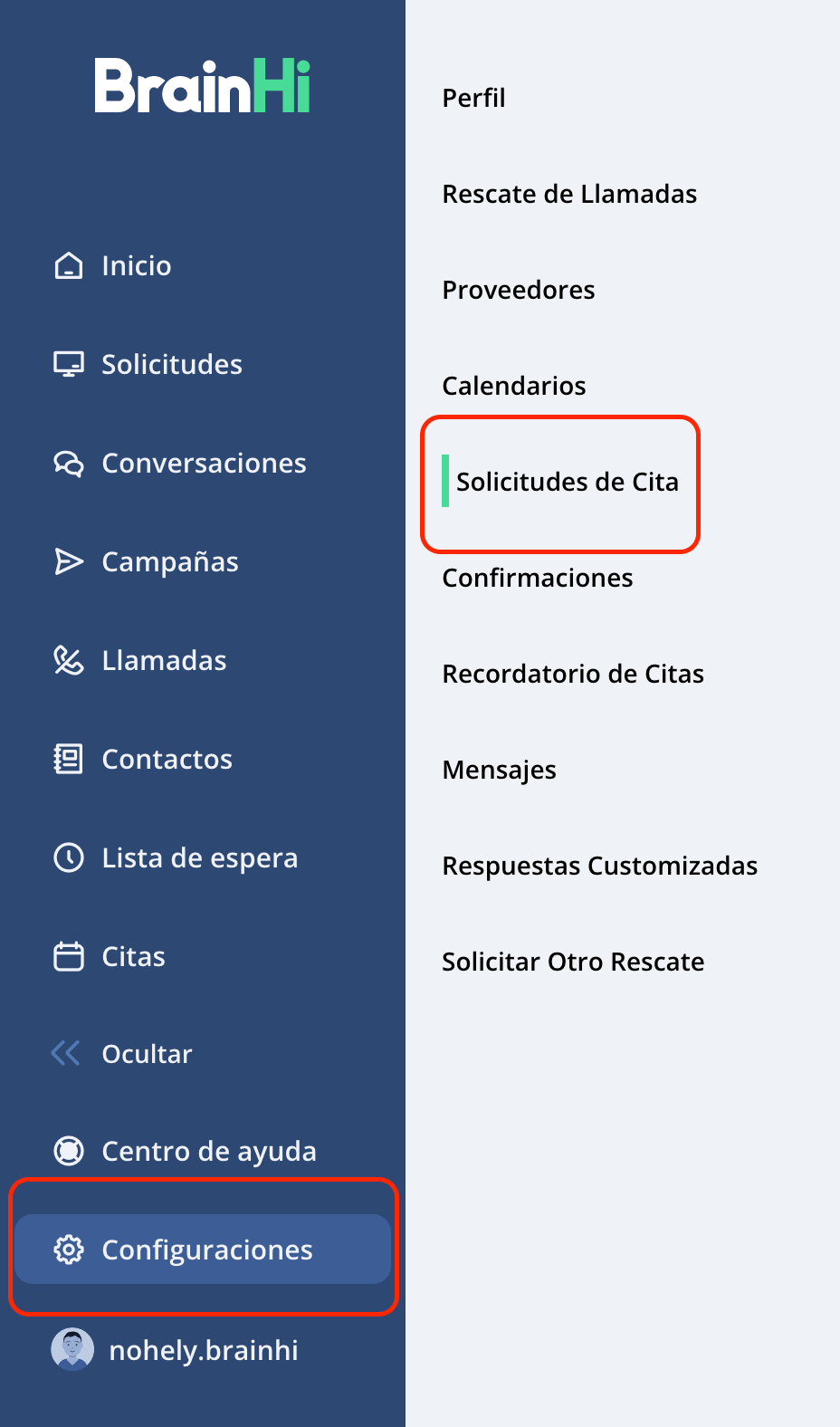
Step 1: Go to Settings, located at the bottom of the left sidebar. Then navigate to Appointment Requests. (examples in red)
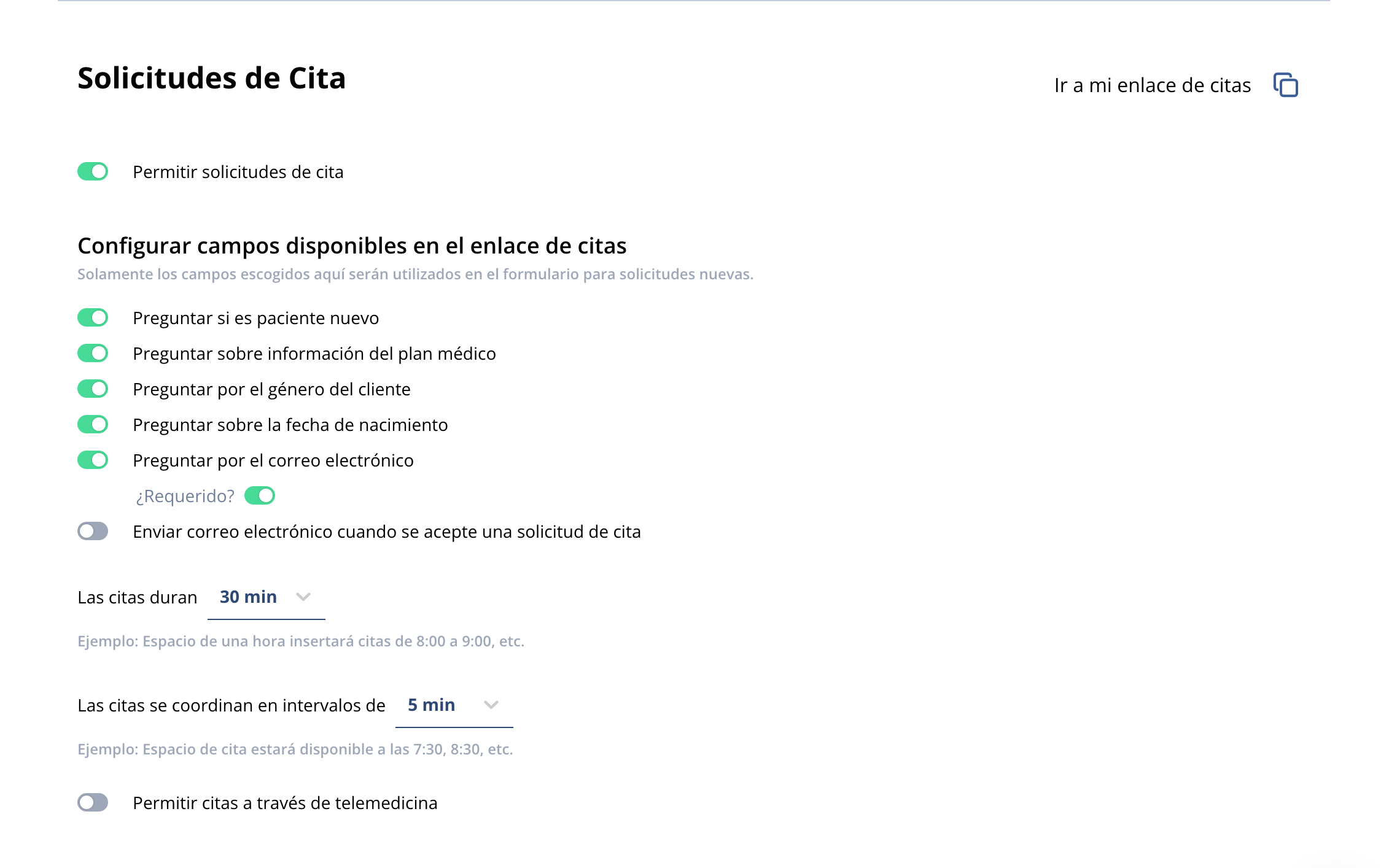
Step 2: In the top right corner of the screen, you will see "Go to my appointment link" next to an icon. By pressing that icon (example in red) it will automatically copy the appointment link that you will send to your clients through conversations.

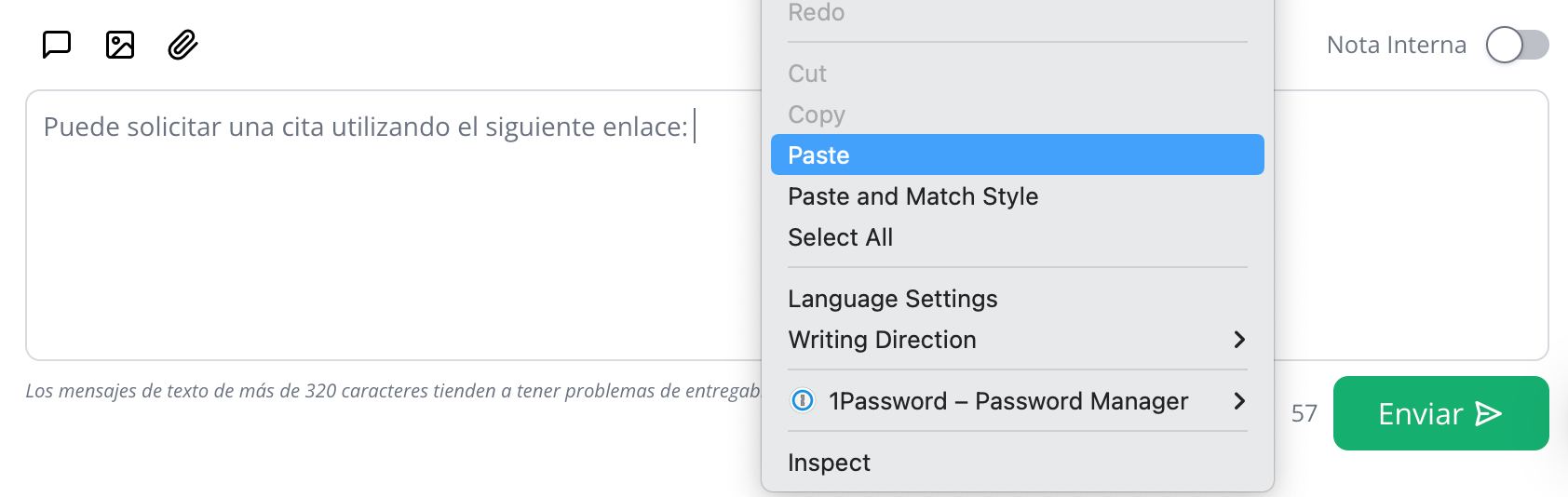
Step 3: Paste (right click) and send the appointment link in the conversation with your client.
Request Process
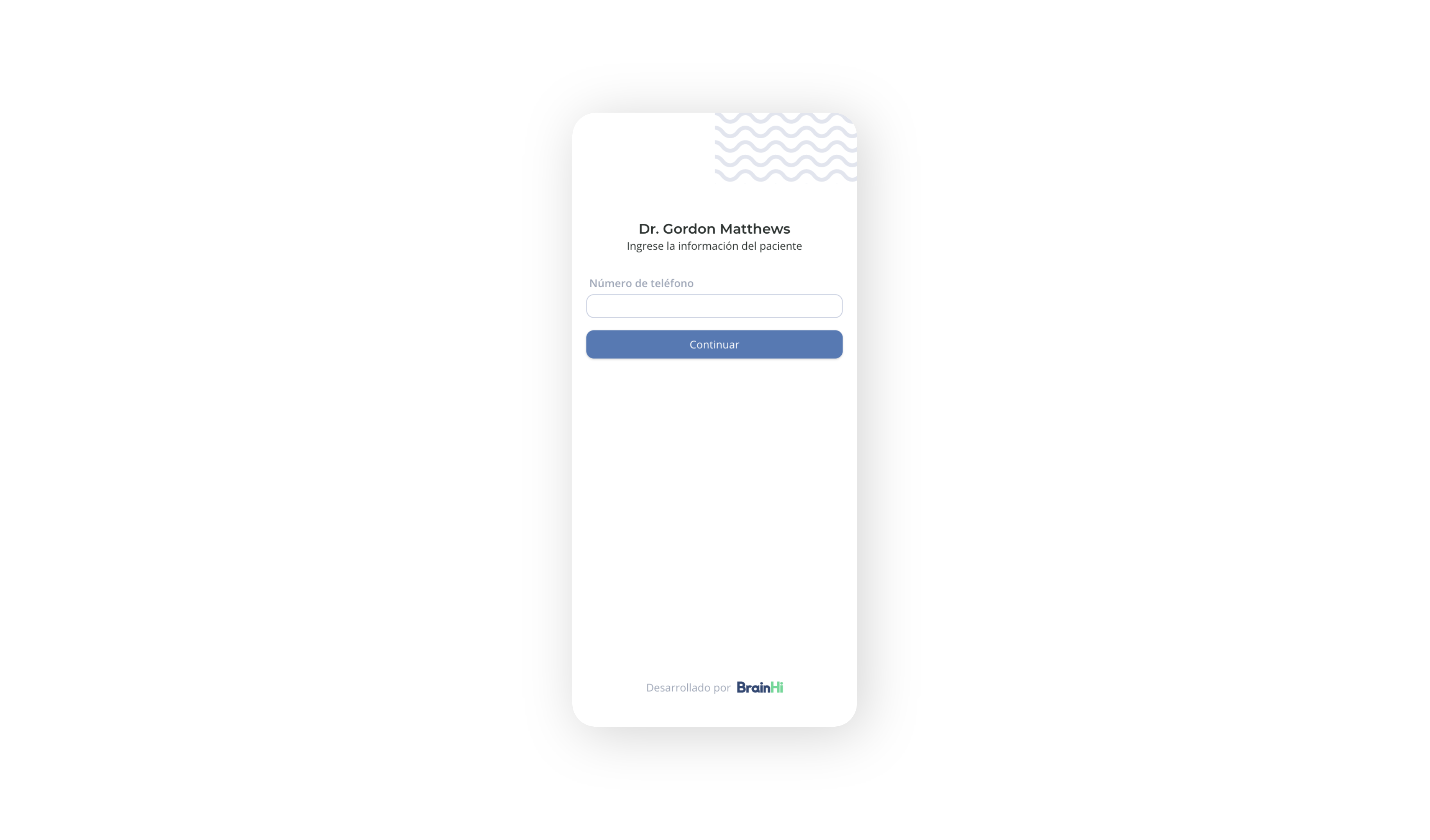
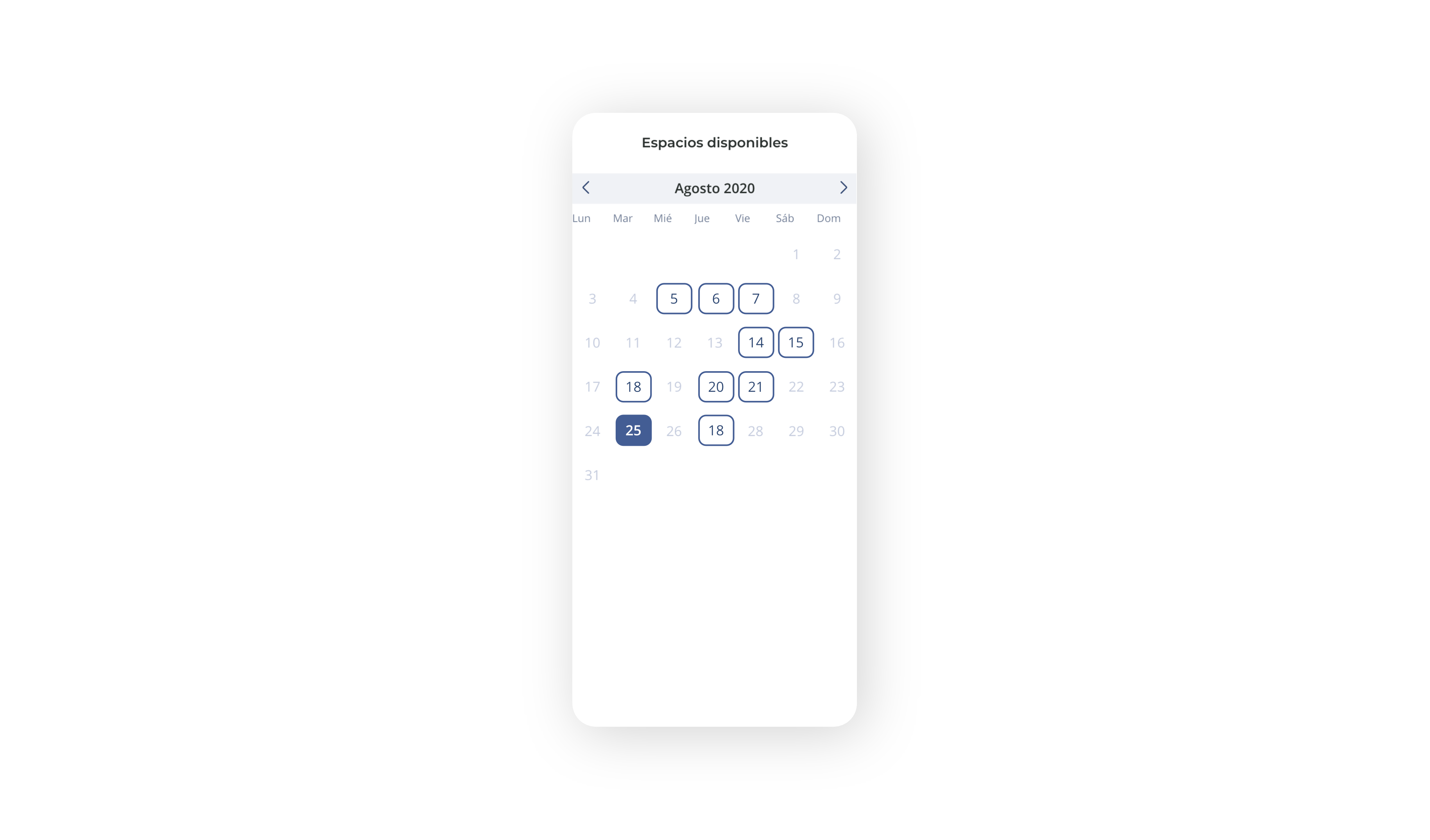
When the patient opens the link, they will go through the process shown here to request the appointment:
If the patient received the link from settings, they will need to enter their phone number
The available time slots and providers shown are fully configurable by you.
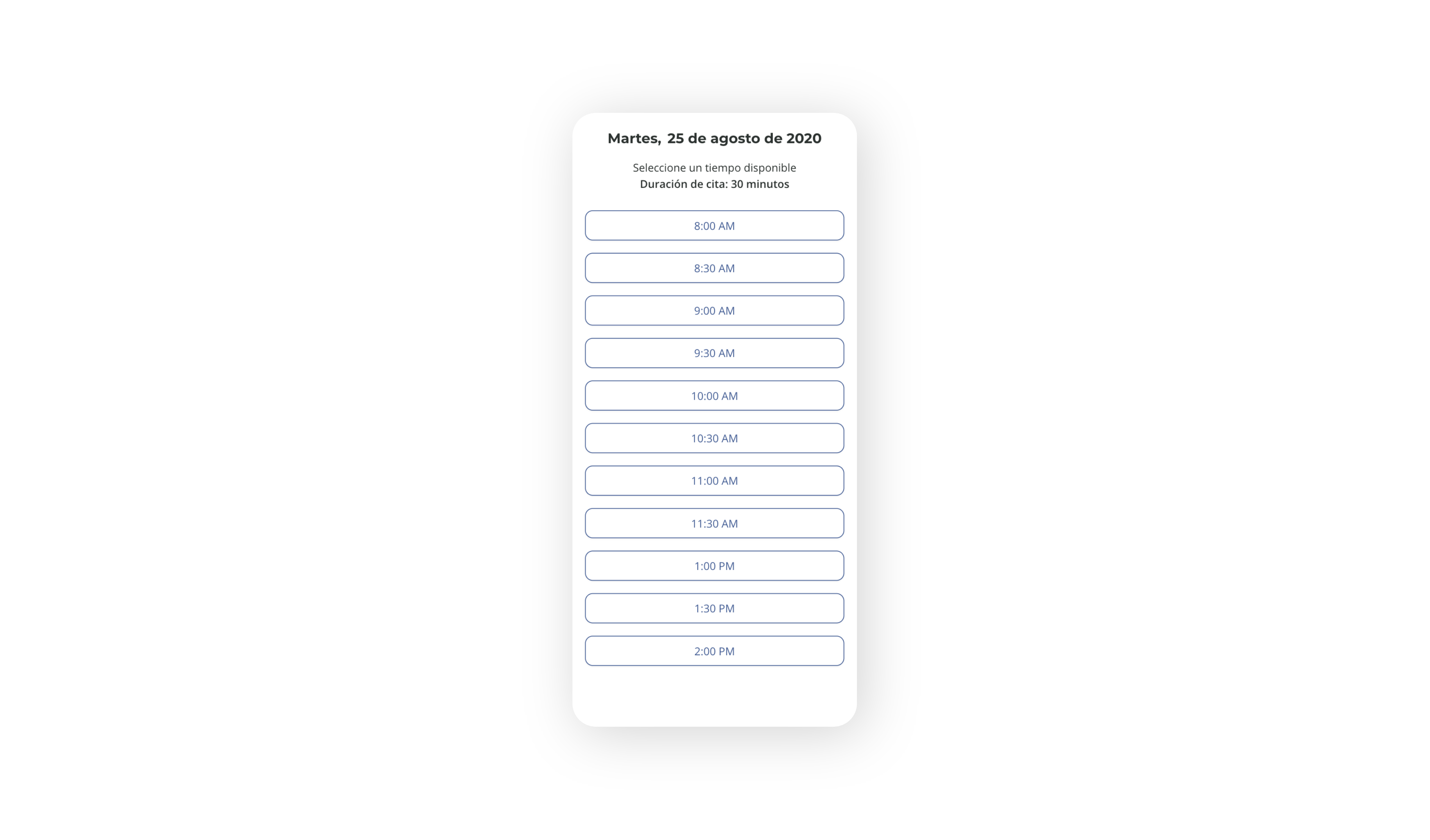
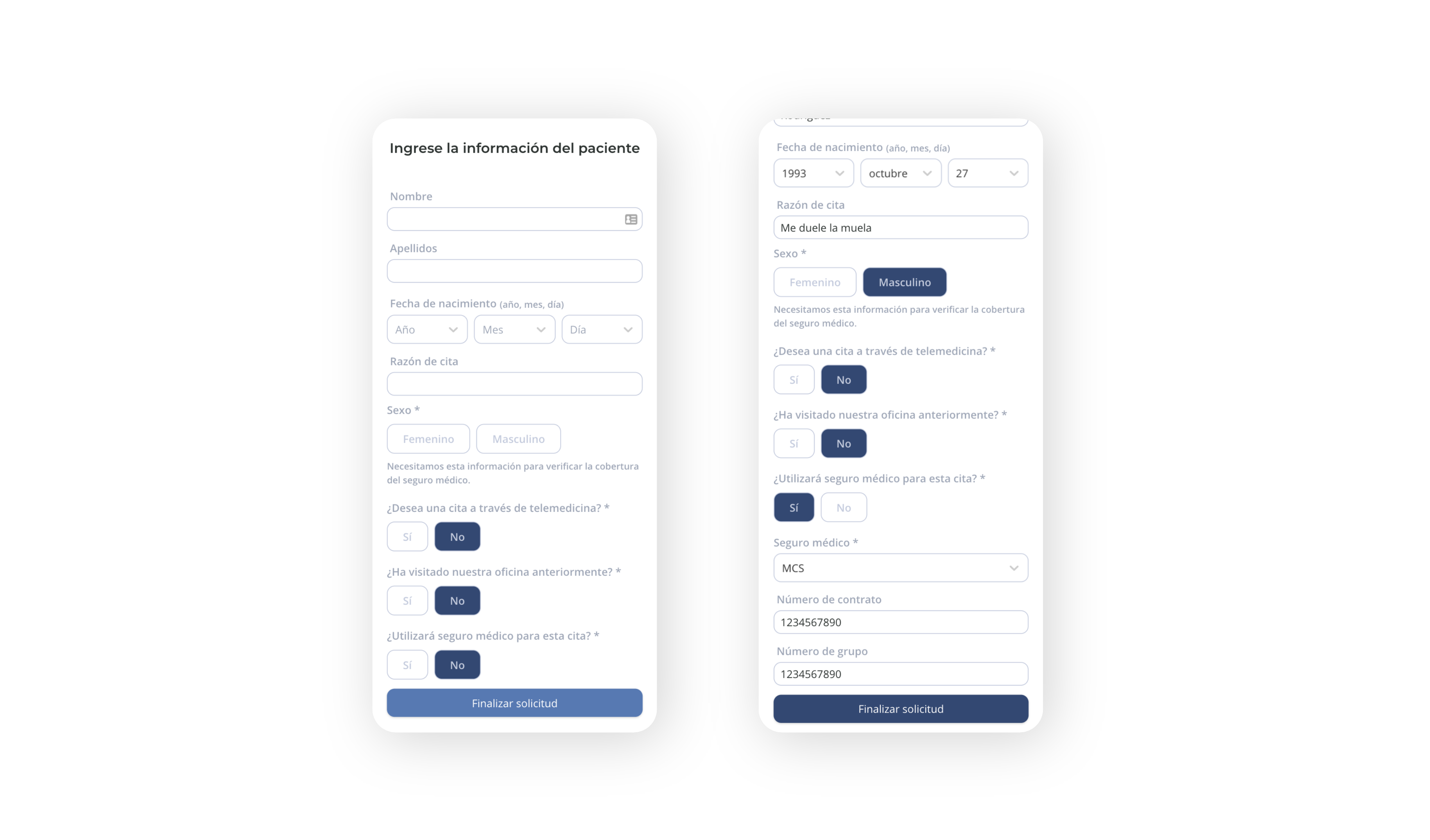
After selecting the day and time, the client will fill in their basic personal information, making that task easier for your office.
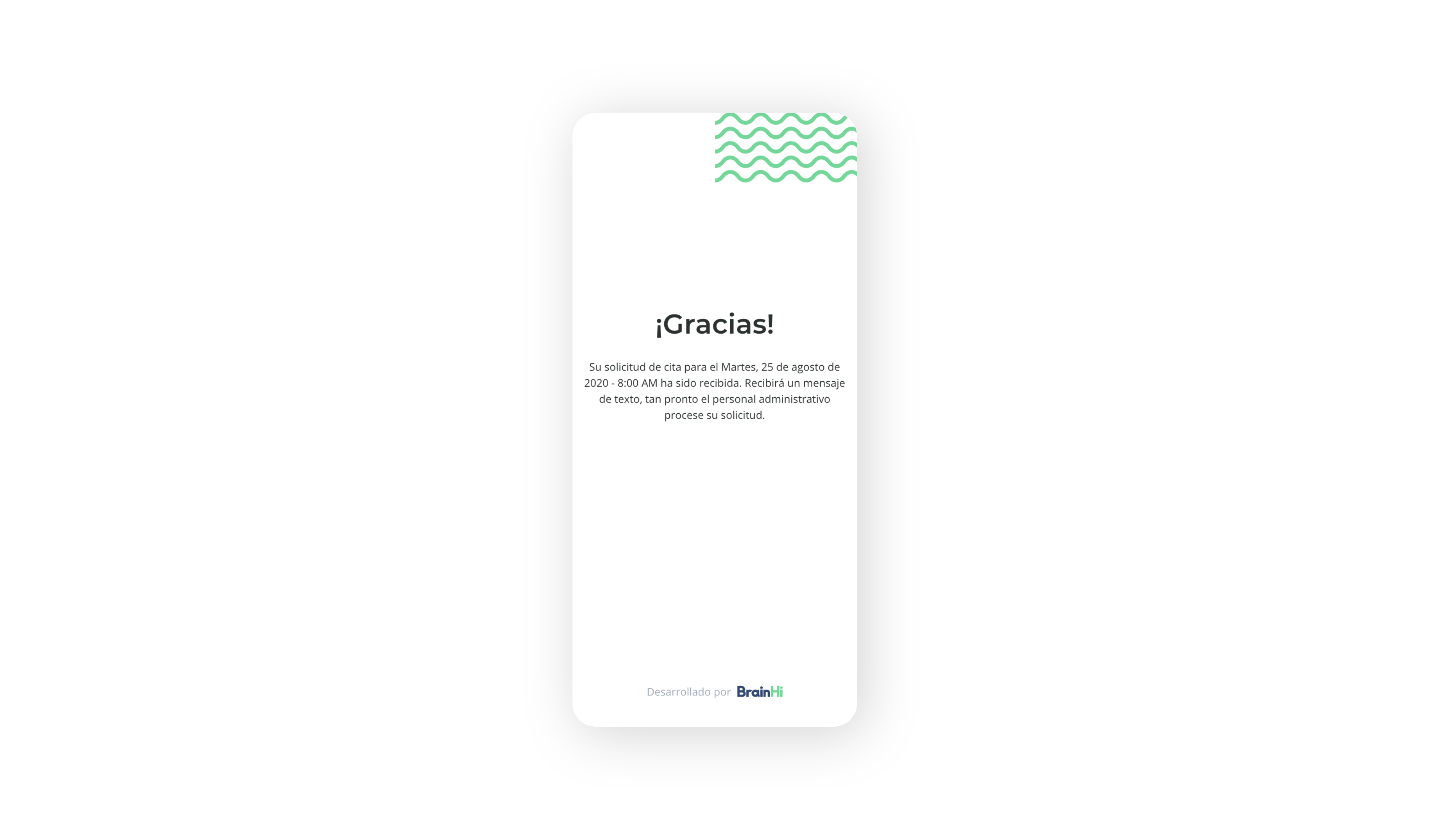
When the client finishes the request, we will show them a screen letting them know they will be notified about it as soon as it is reviewed by your staff.
Screen Recording 2023-02-14 at 11.19.09 AM.mov
Screen Recording 2023-02-14 at 11.20.58 AM.mov
Related articles