# Access phone.brainhi.com and enter your credentials
You can use the same credentials you use on the main BrainHi portal at secure.brainhi.com
1. To generate a new call or outgoing call, you can use the buttons illustrated below 👇🏼
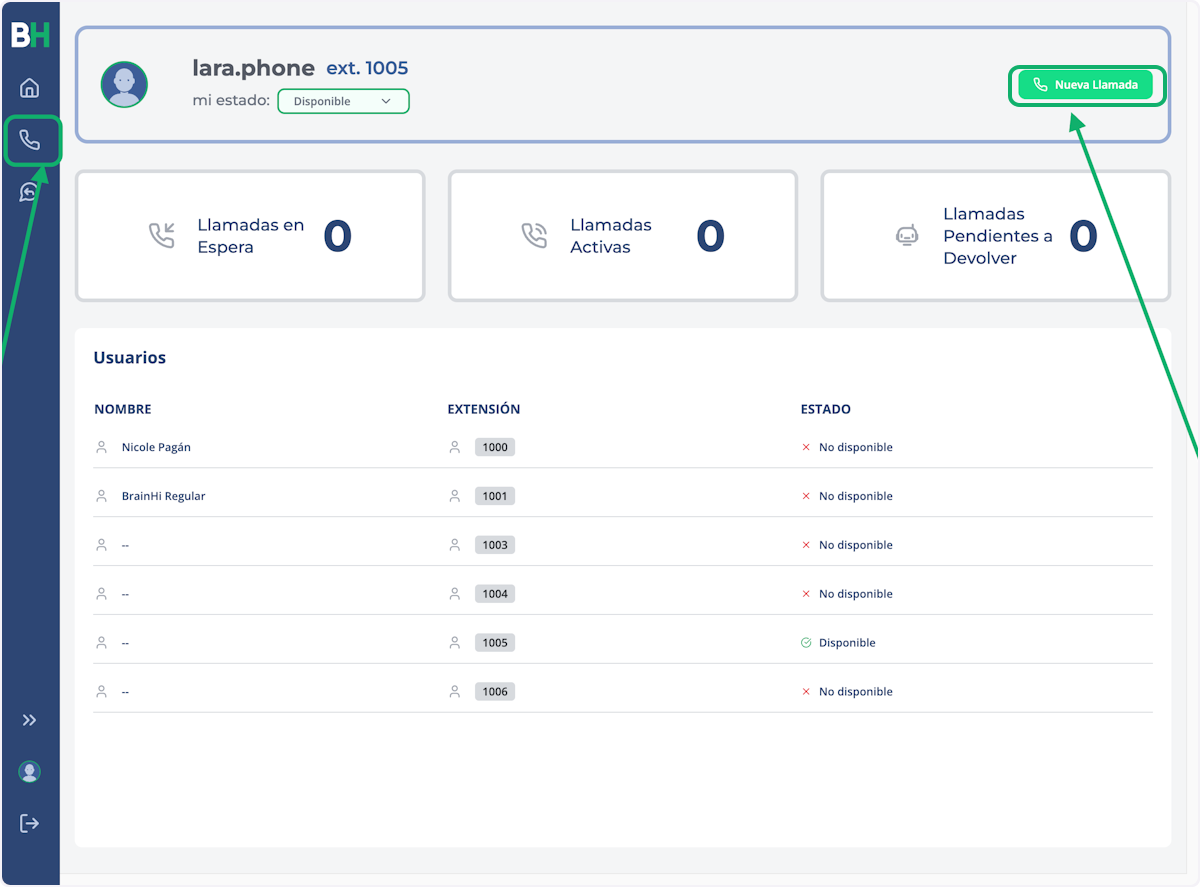
2. Both options will guide you to a number keypad
To enter numbers using your computer keyboard, remember to click on the bar that reads "Enter phone number."
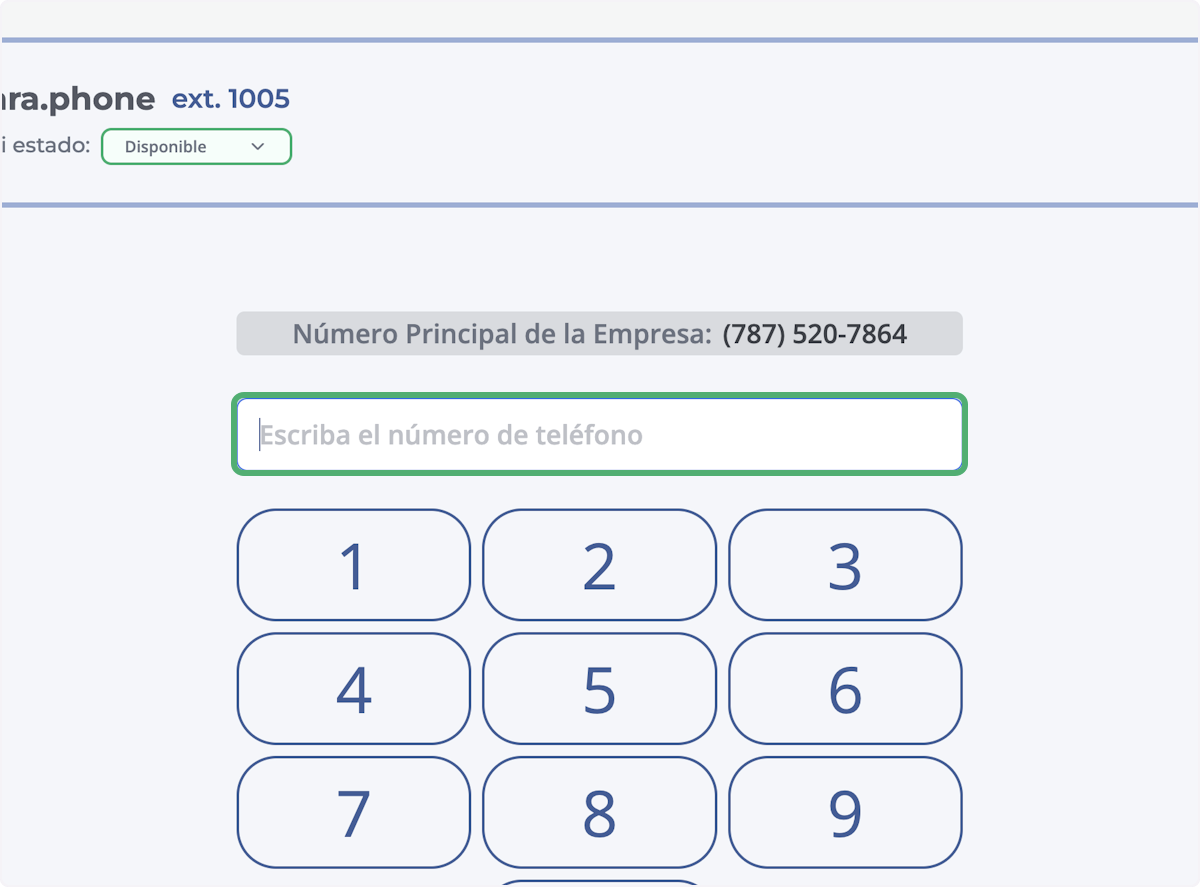
3. You can also change the number displayed when calling
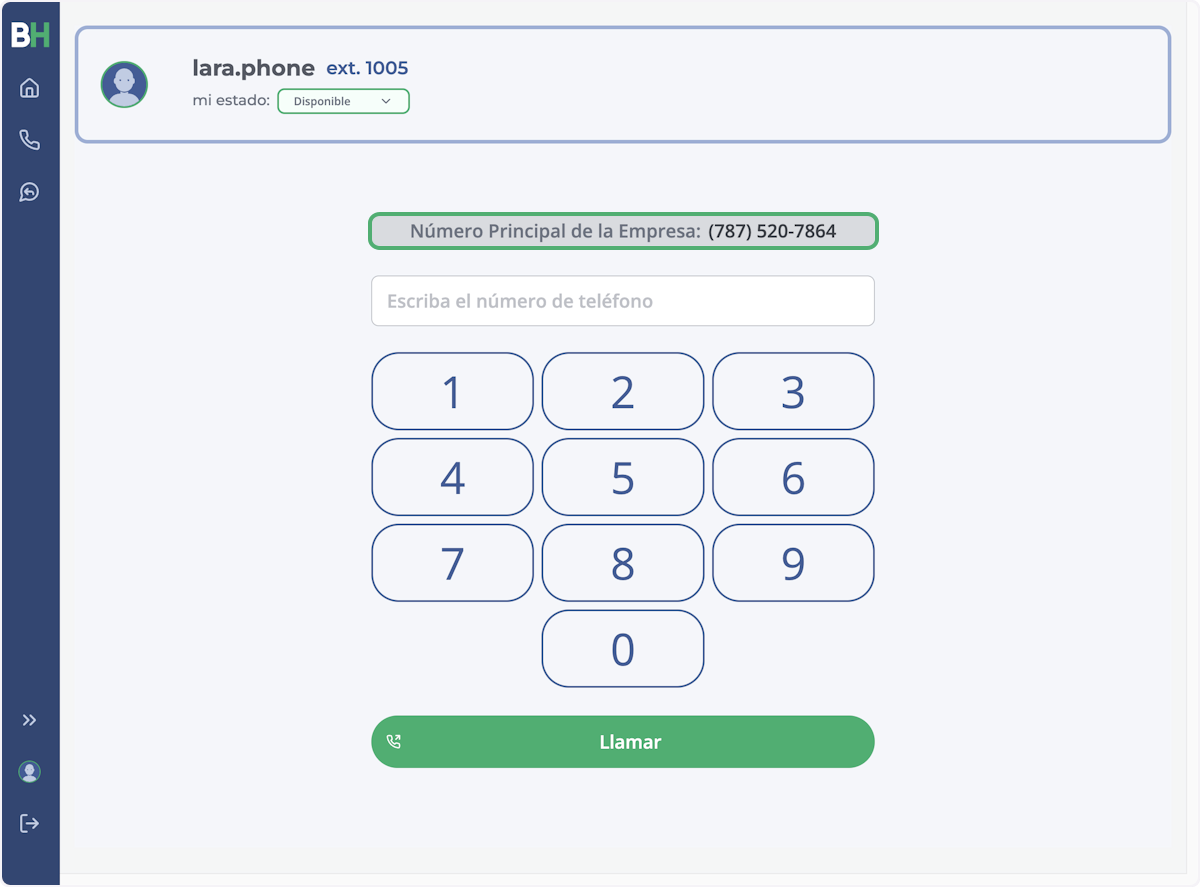
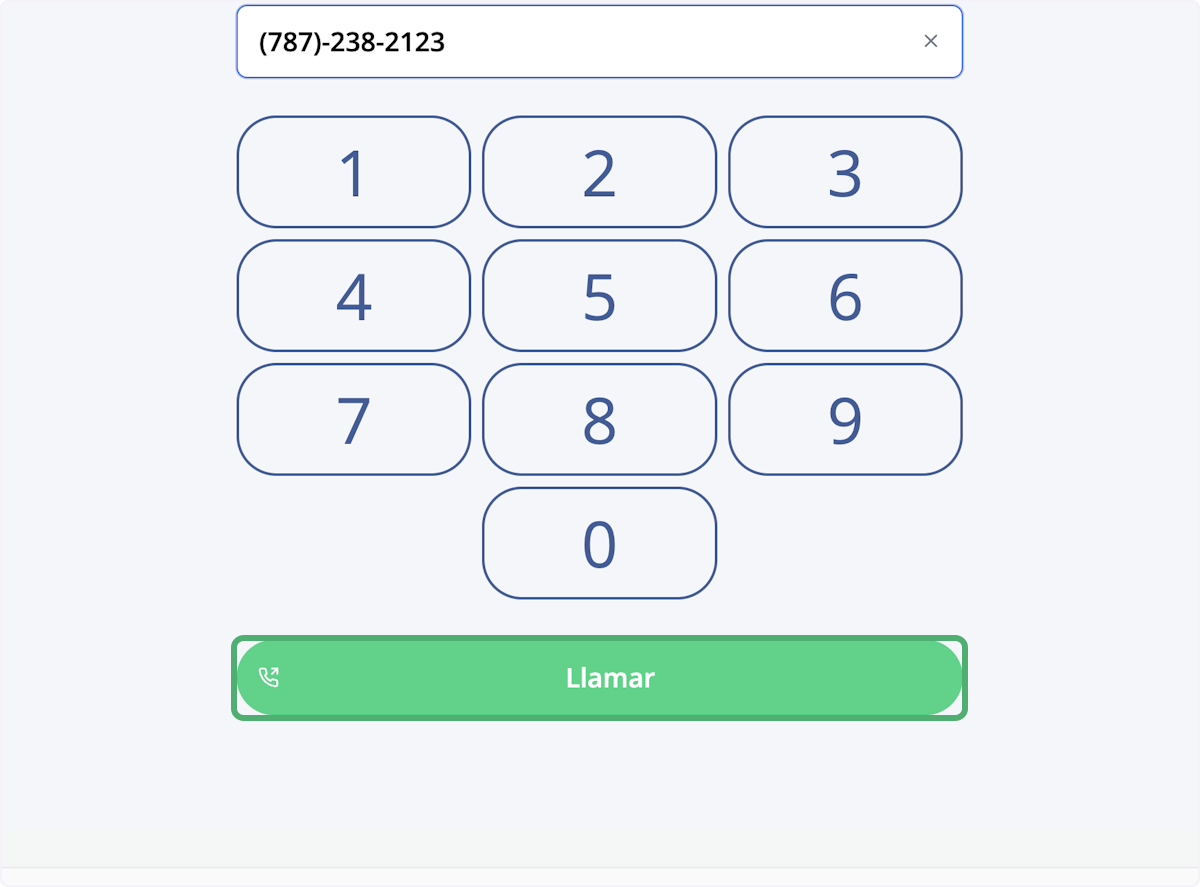
4. To make the call, select Call
5. During the call you will be able to see the same conversation that exists in your account at secure.brainhi.com with that contact
You can also send text messages...
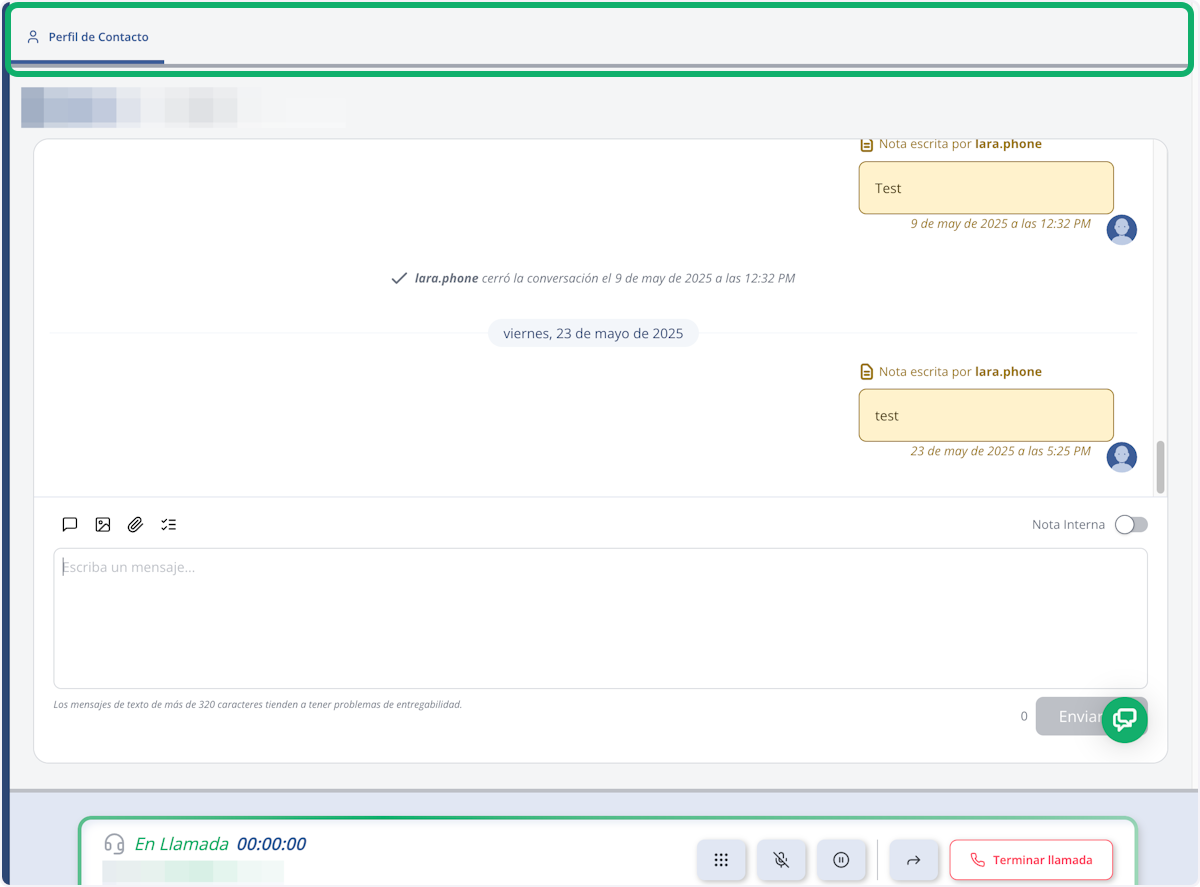
6. You can also send internal notes during the call
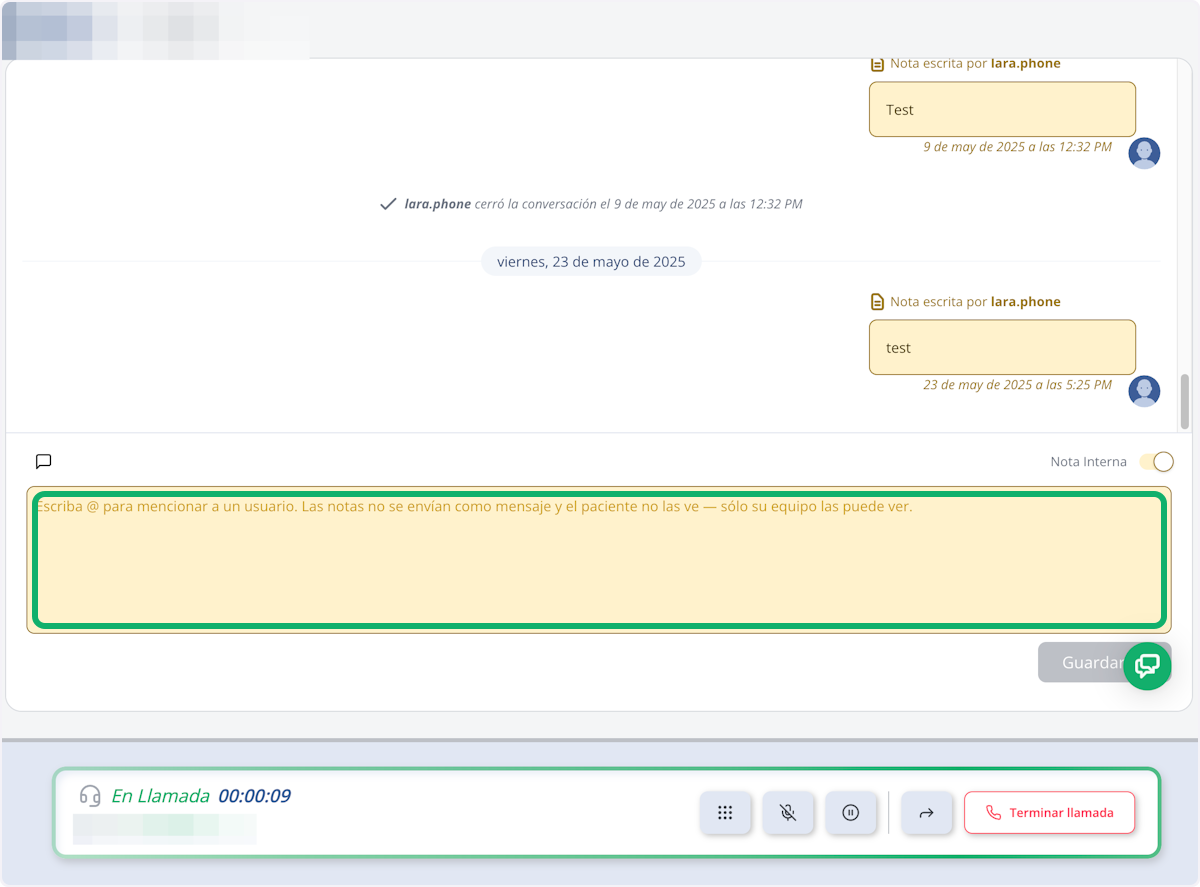
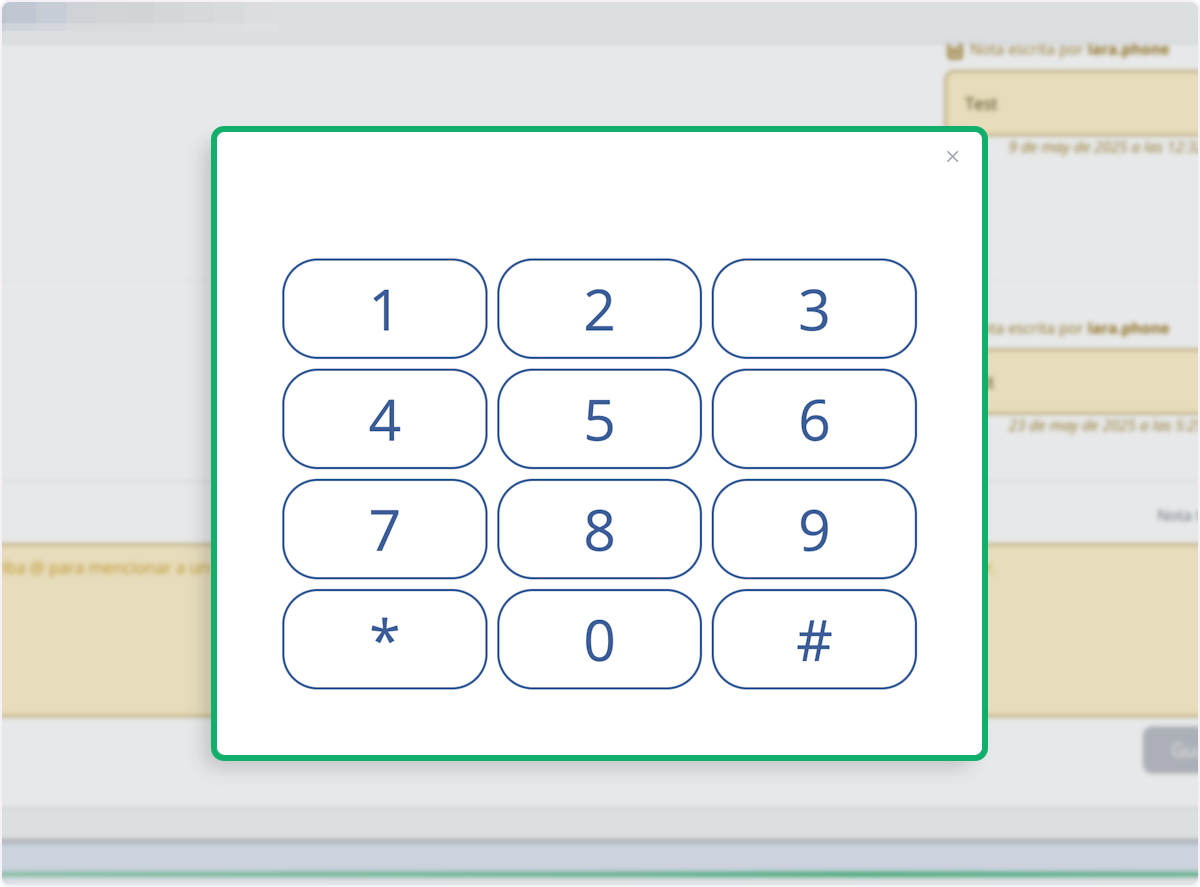
7. If during the call you want to select IVR options, you can open a keypad during the call...
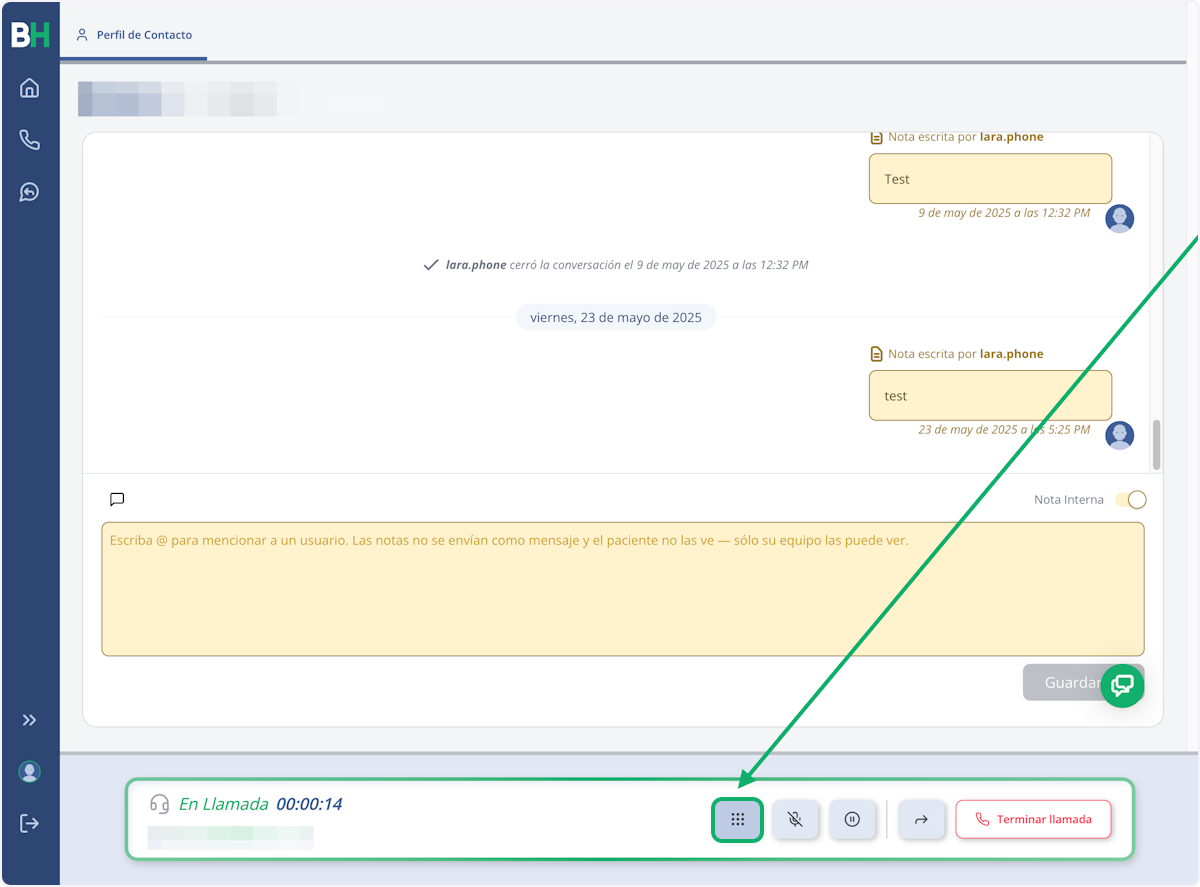
8. Click on 1
9. You can mute your microphone...
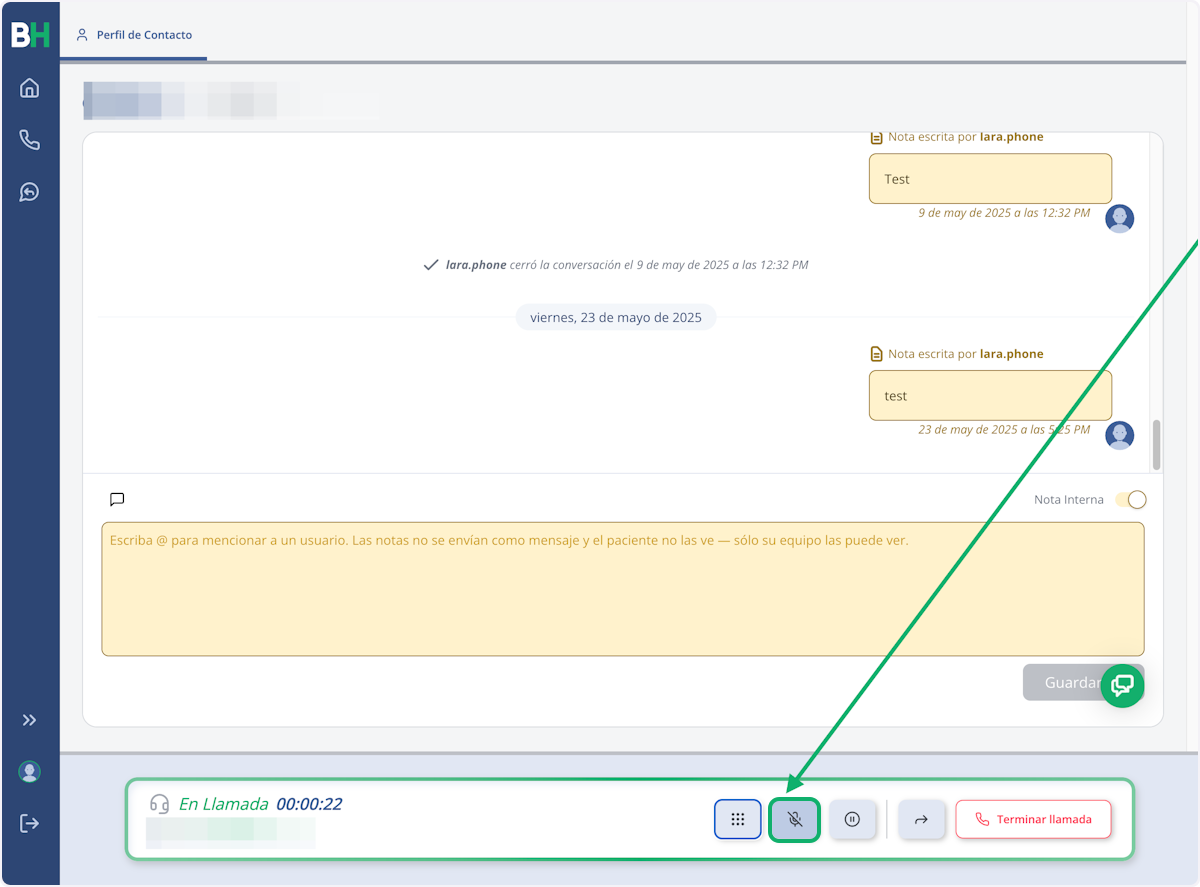
10. Click on In Call…
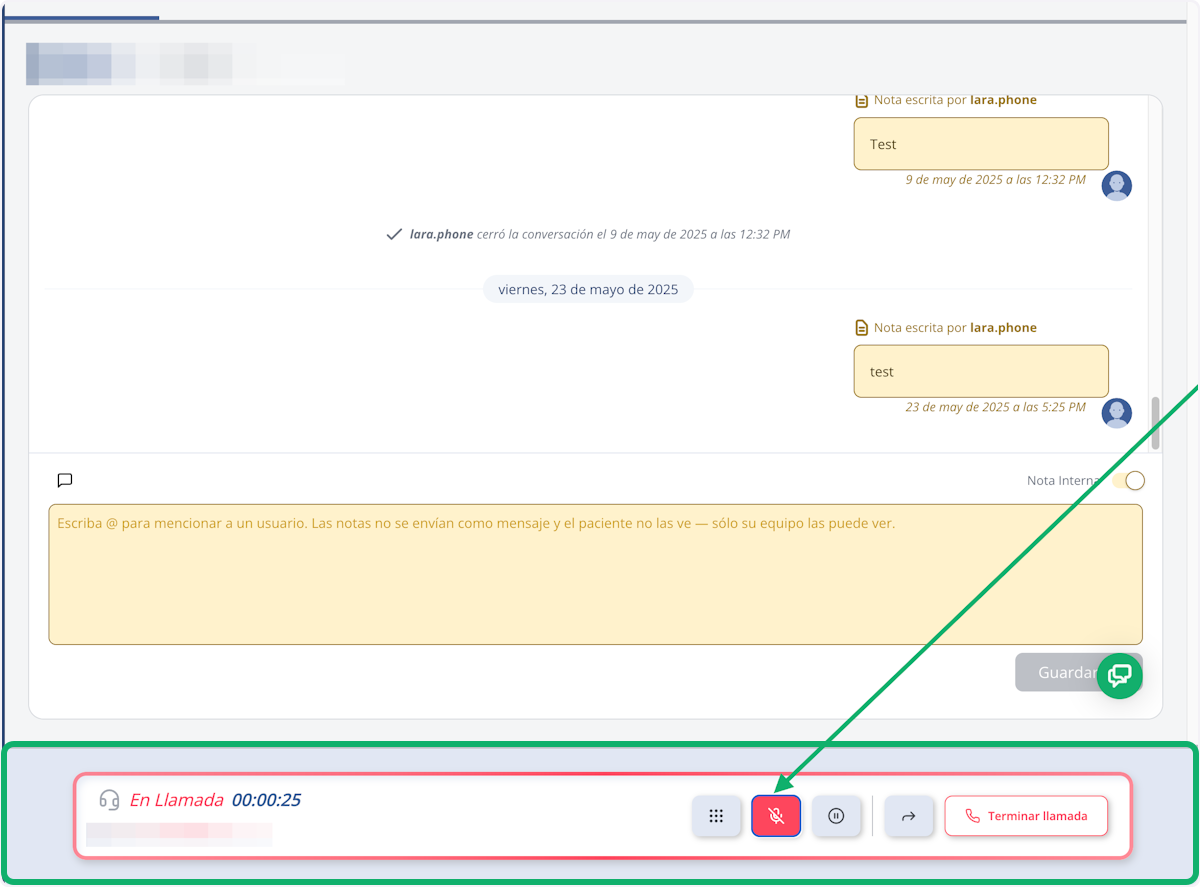
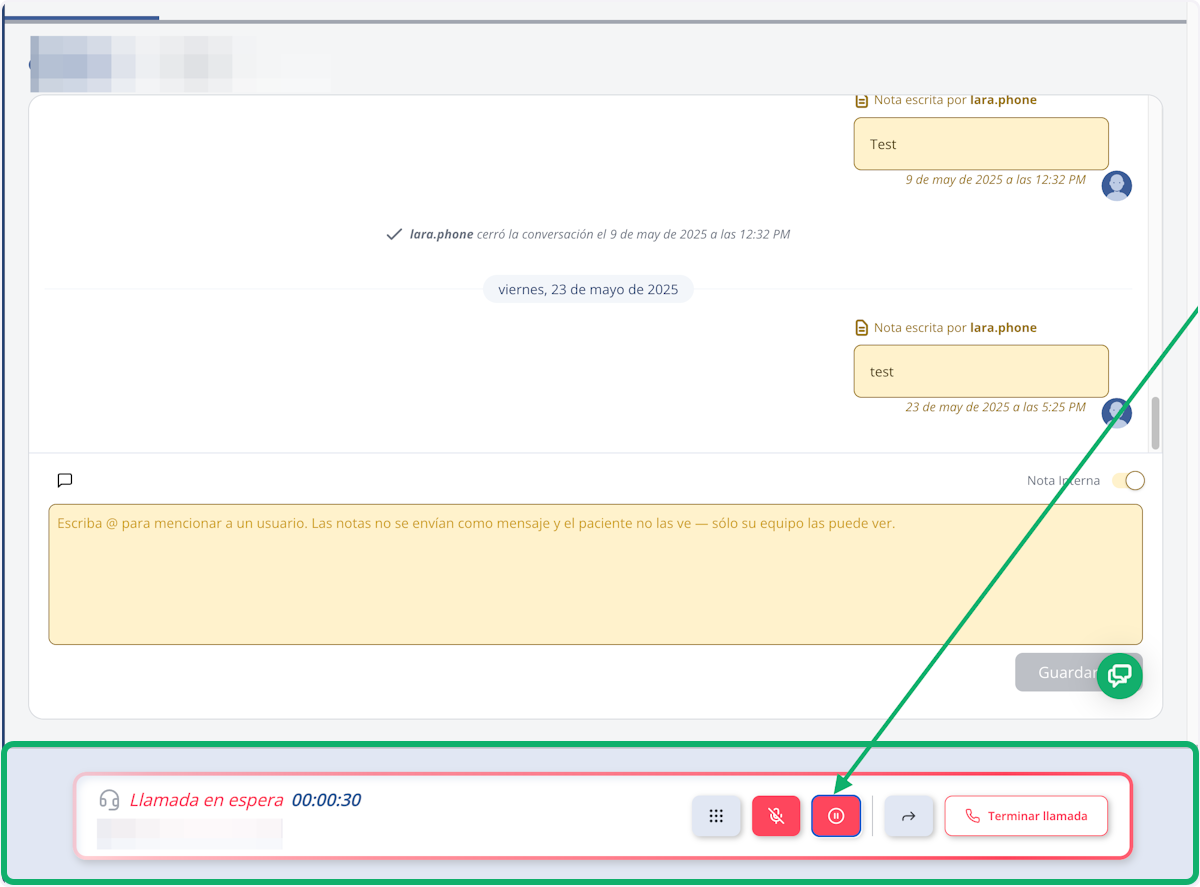
11. You can place the call on hold...
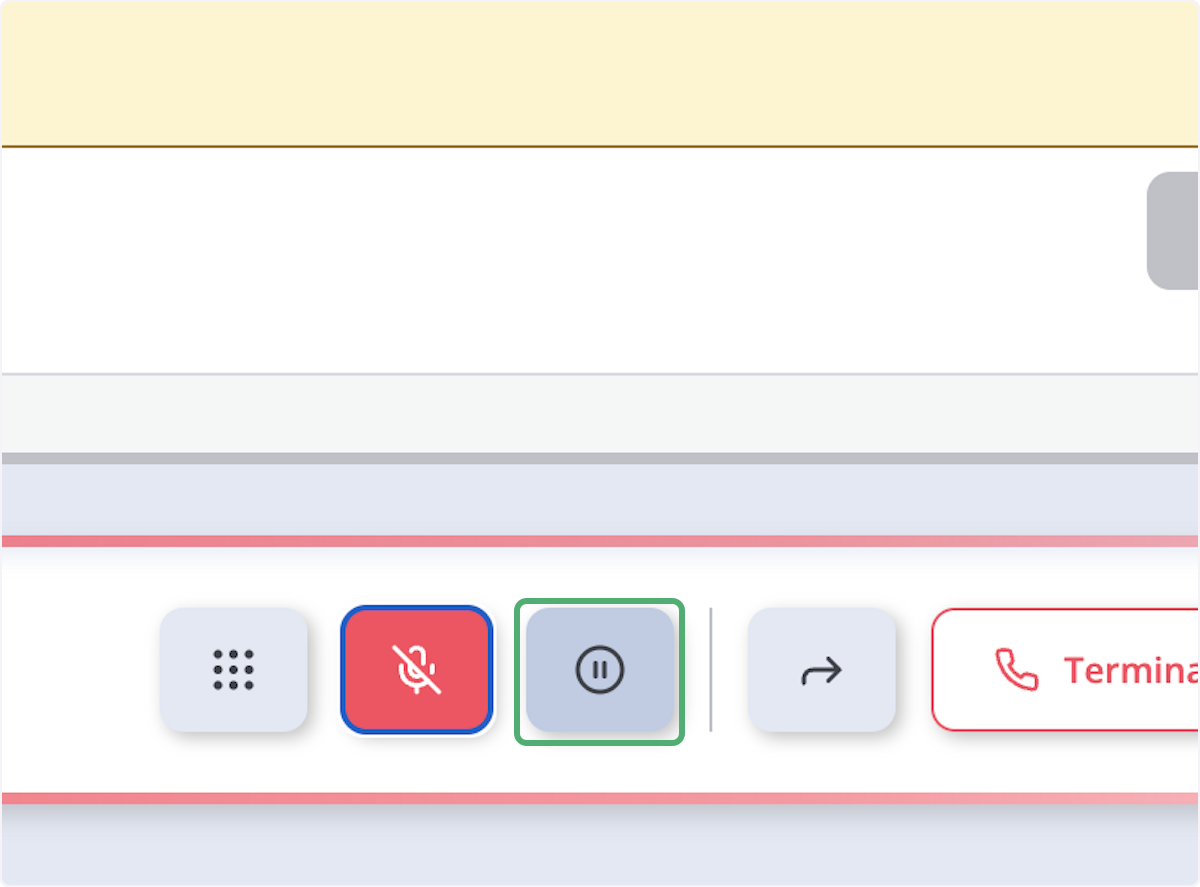
12. Click on Call on hold…
13. Or transfer the call...
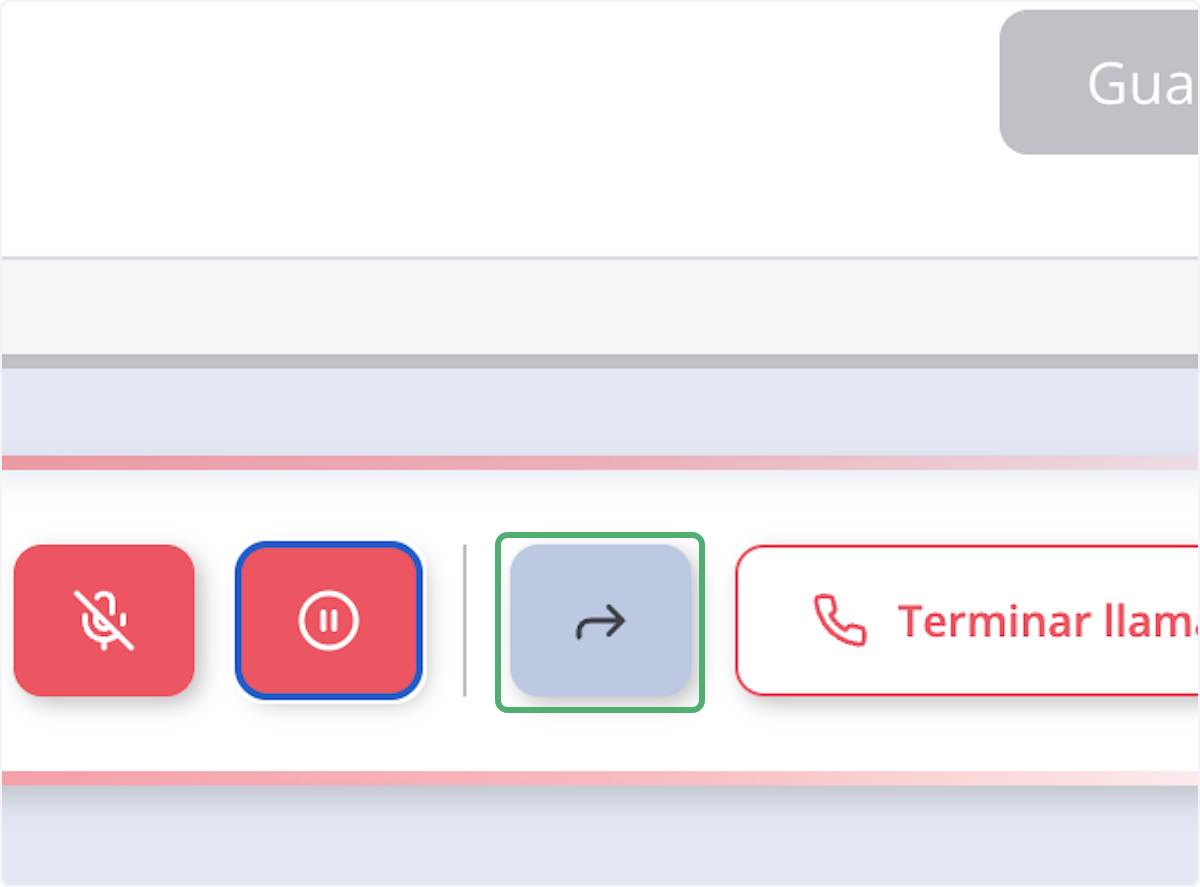
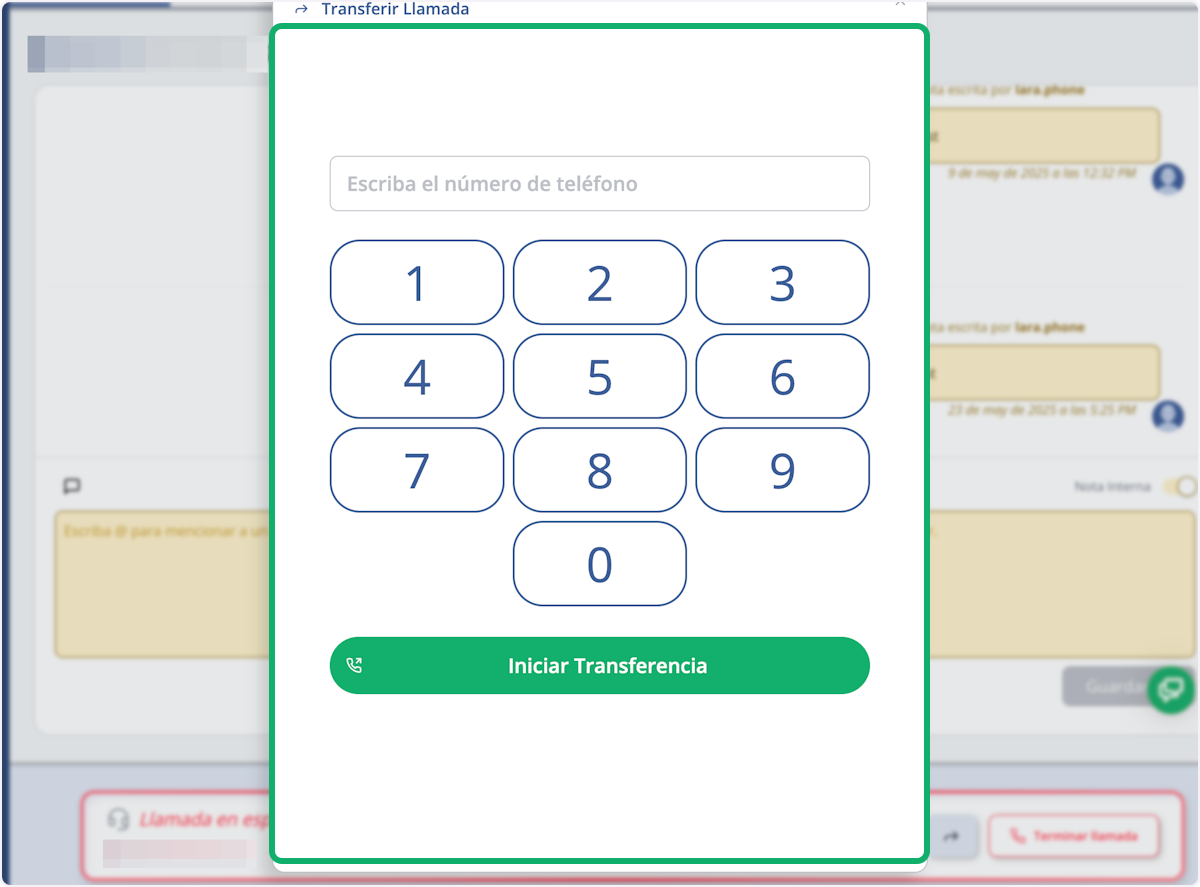
14. When starting the transfer, another keypad will appear for you to enter the number to which you want to transfer the call...
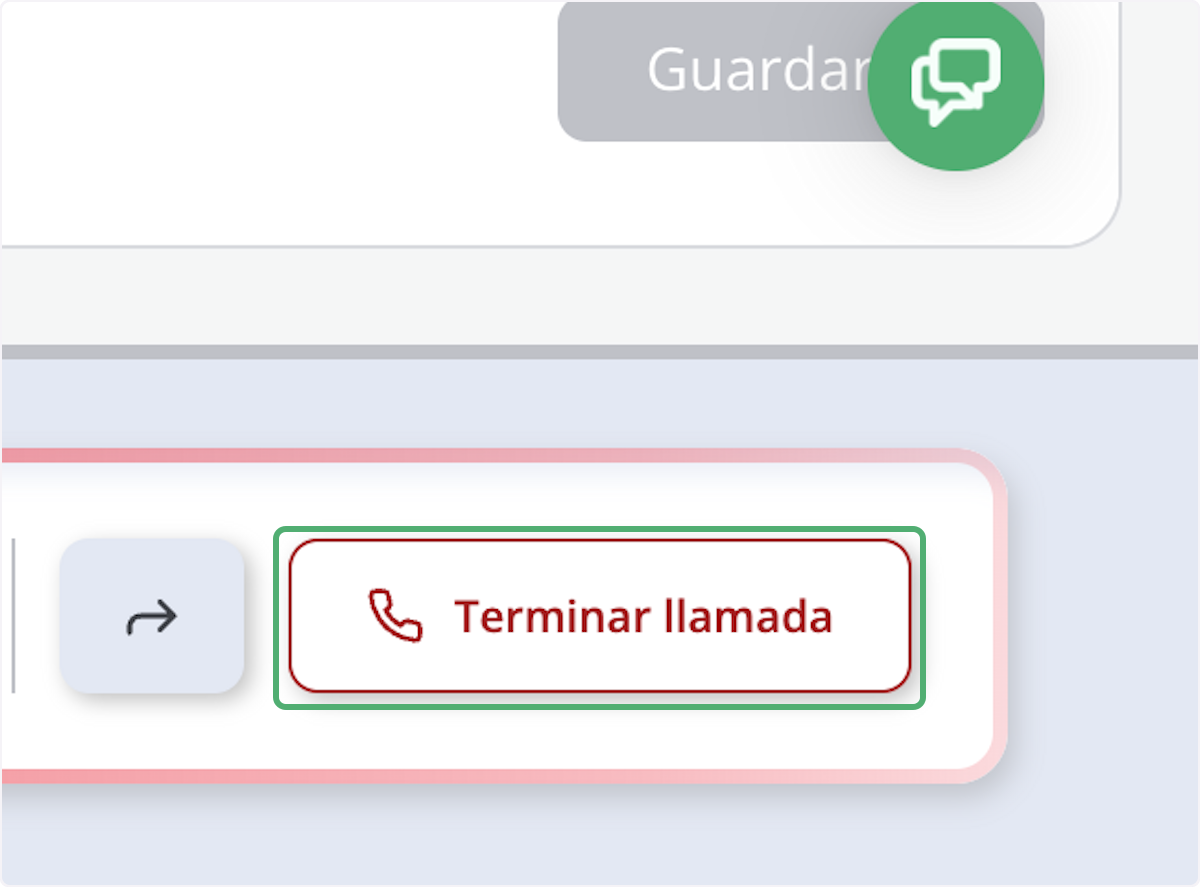
15. After ending the call you will then have the option to add a resolution note and choose a tag to classify the reason and/or resolution of the call...
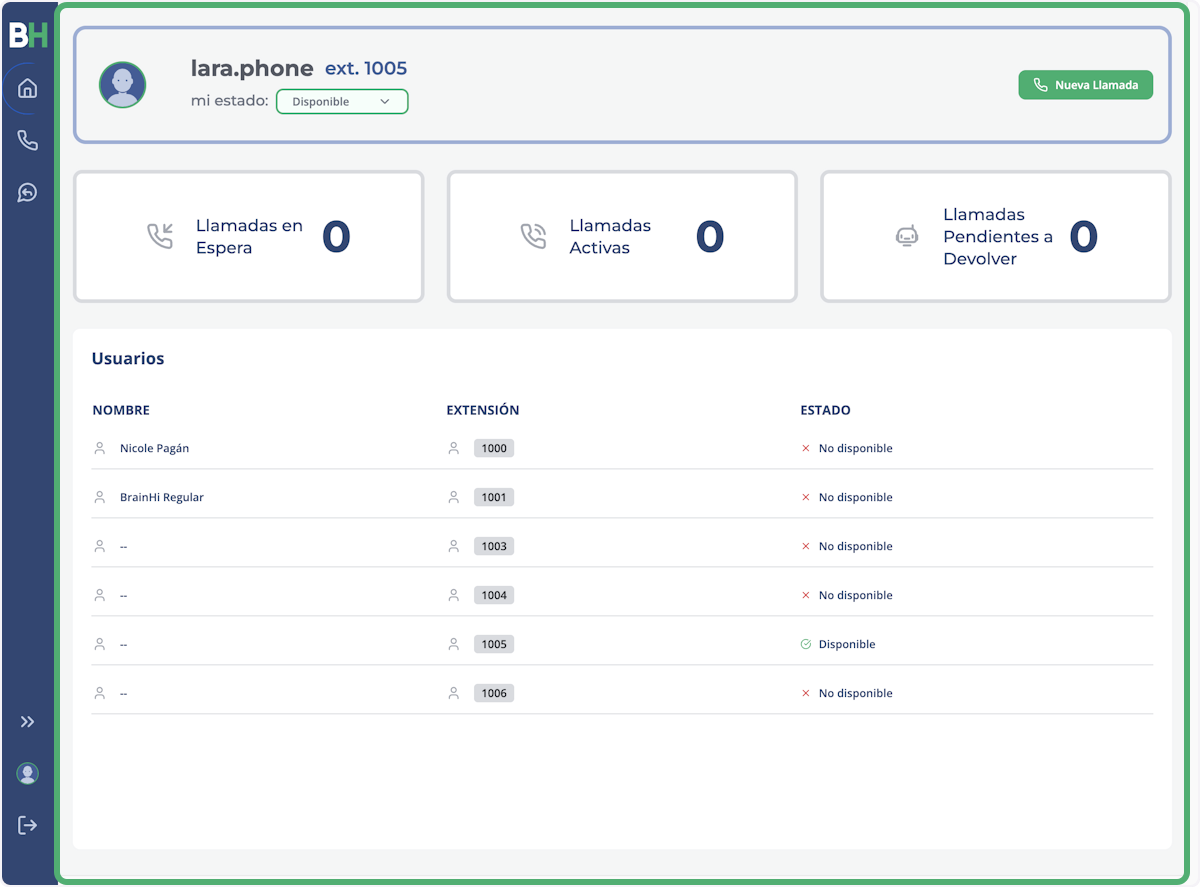
16. Finally, you will be able to monitor Calls on Hold, Active Calls, and Pending Callback Calls
Related articles