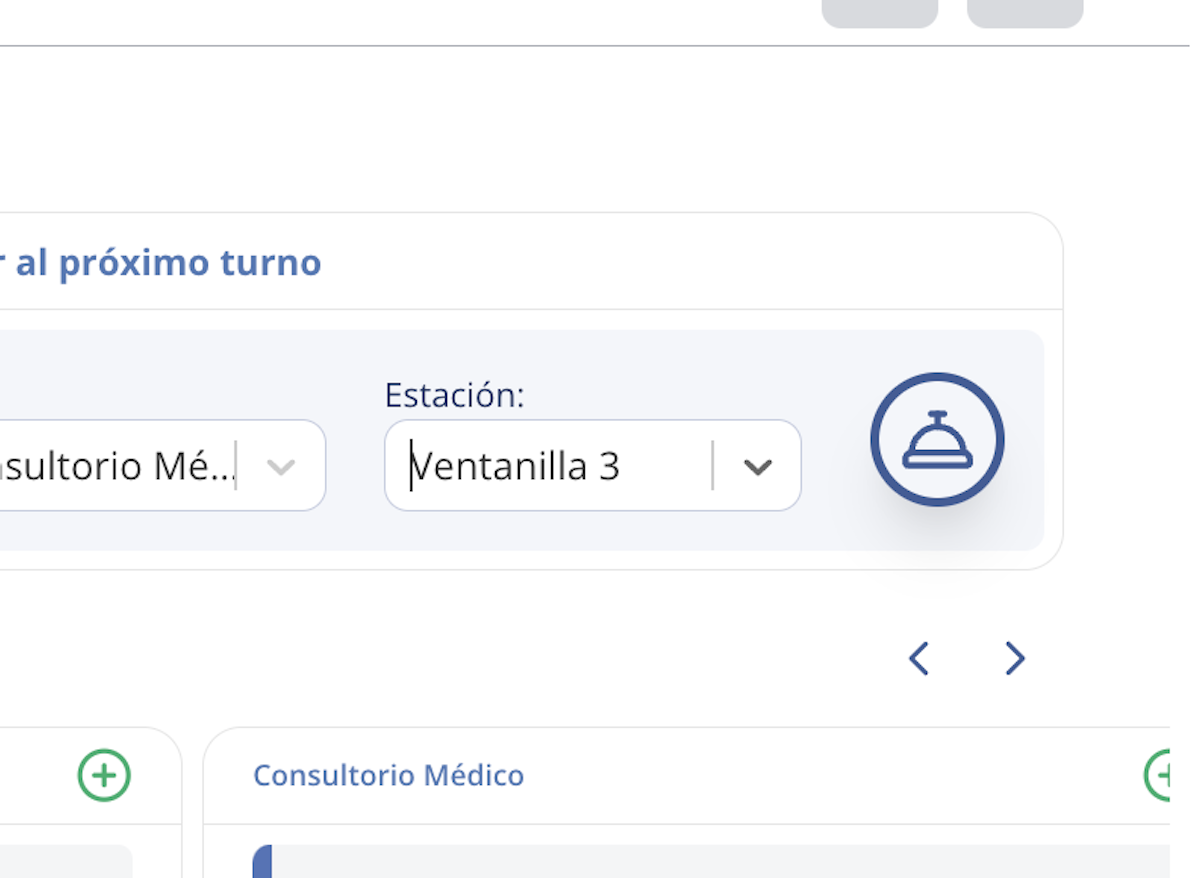
1. Call the patient to the "Attending" station
When you call a patient, they will receive a text message notifying them of their turn:
"It's your turn! You may proceed to the Medical Office to be seen at Window 3.
- Oquendo Jr Junior"
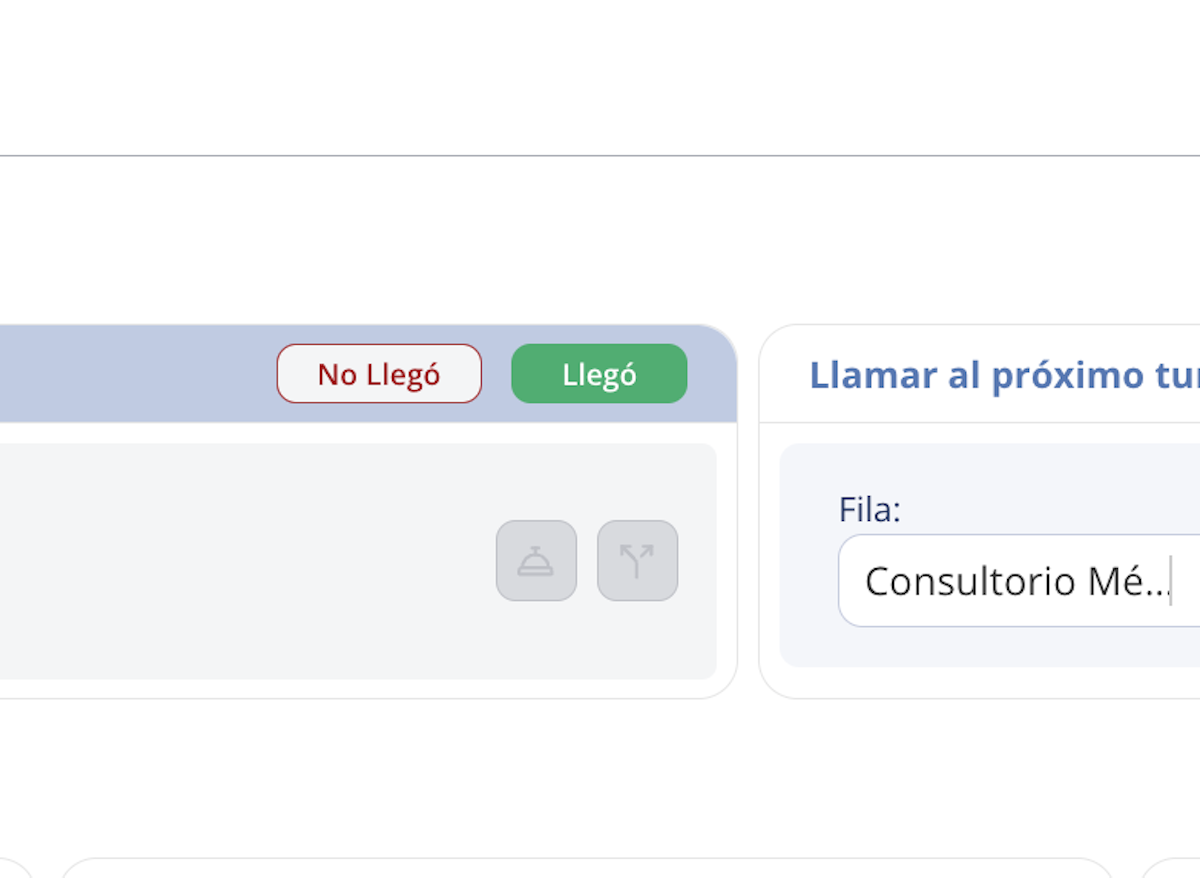
2. Confirm the patient's arrival
If the patient has arrived at the station where you will attend them, press the Arrived button to validate this action. This will help define the person's service time.
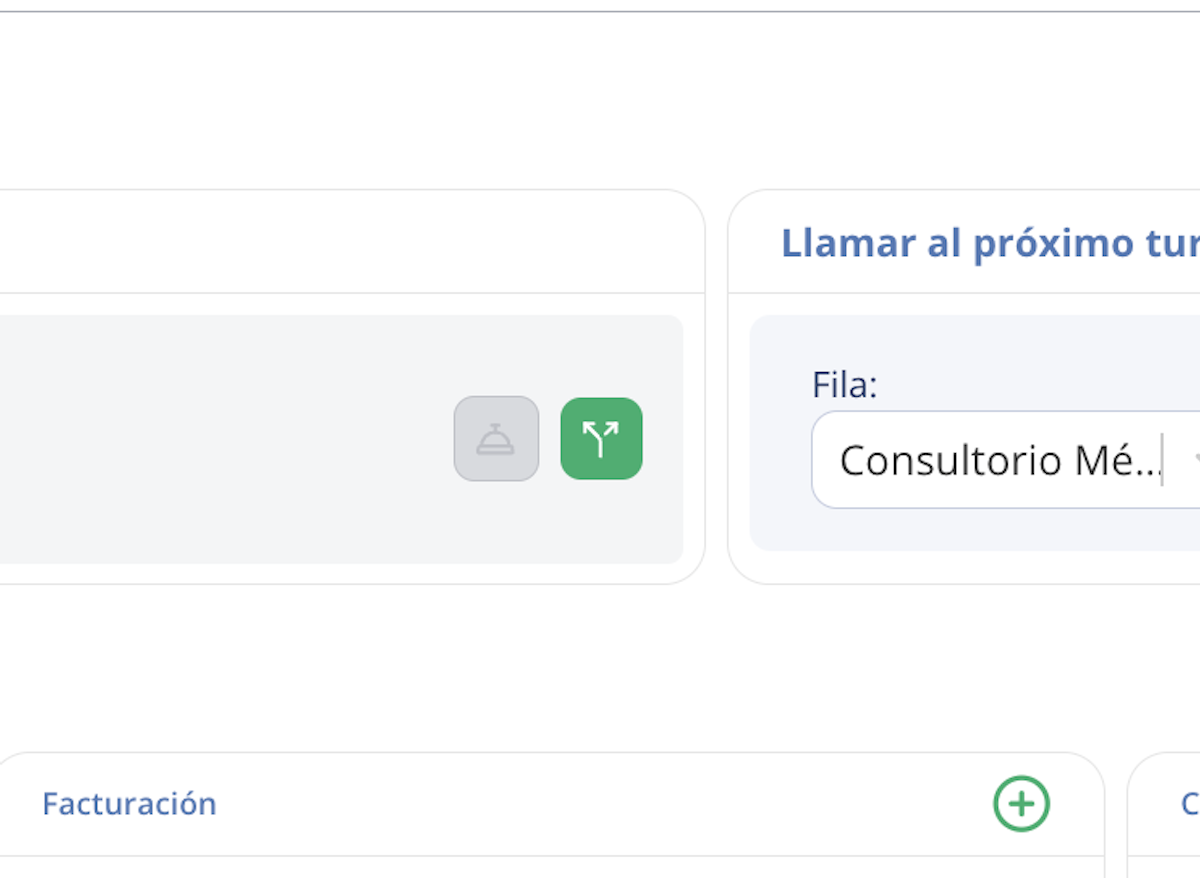
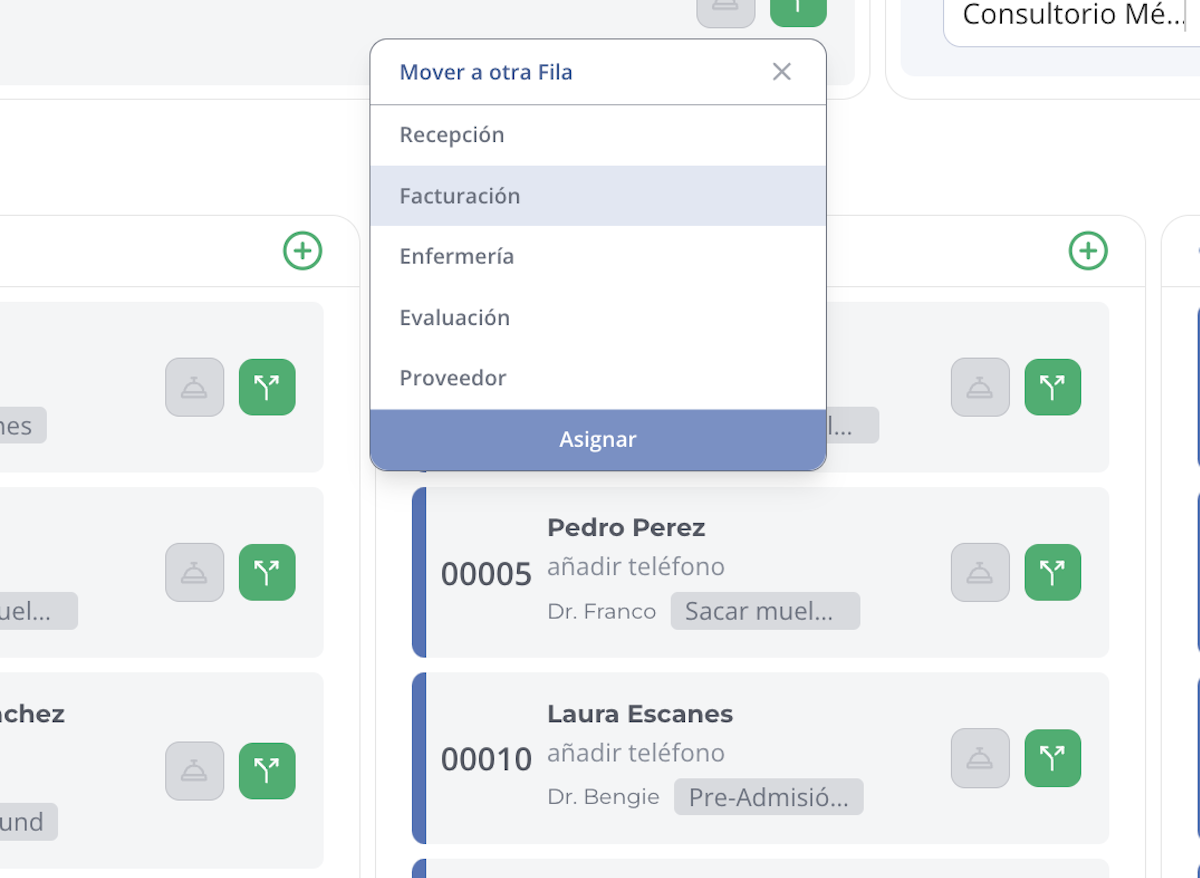
3. Move the patient to another queue
Once the patient has been attended, use the Move to Another Queue option.
4. Select the new queue
A list with all available queues will appear. Select the queue to which you want to assign the patient.
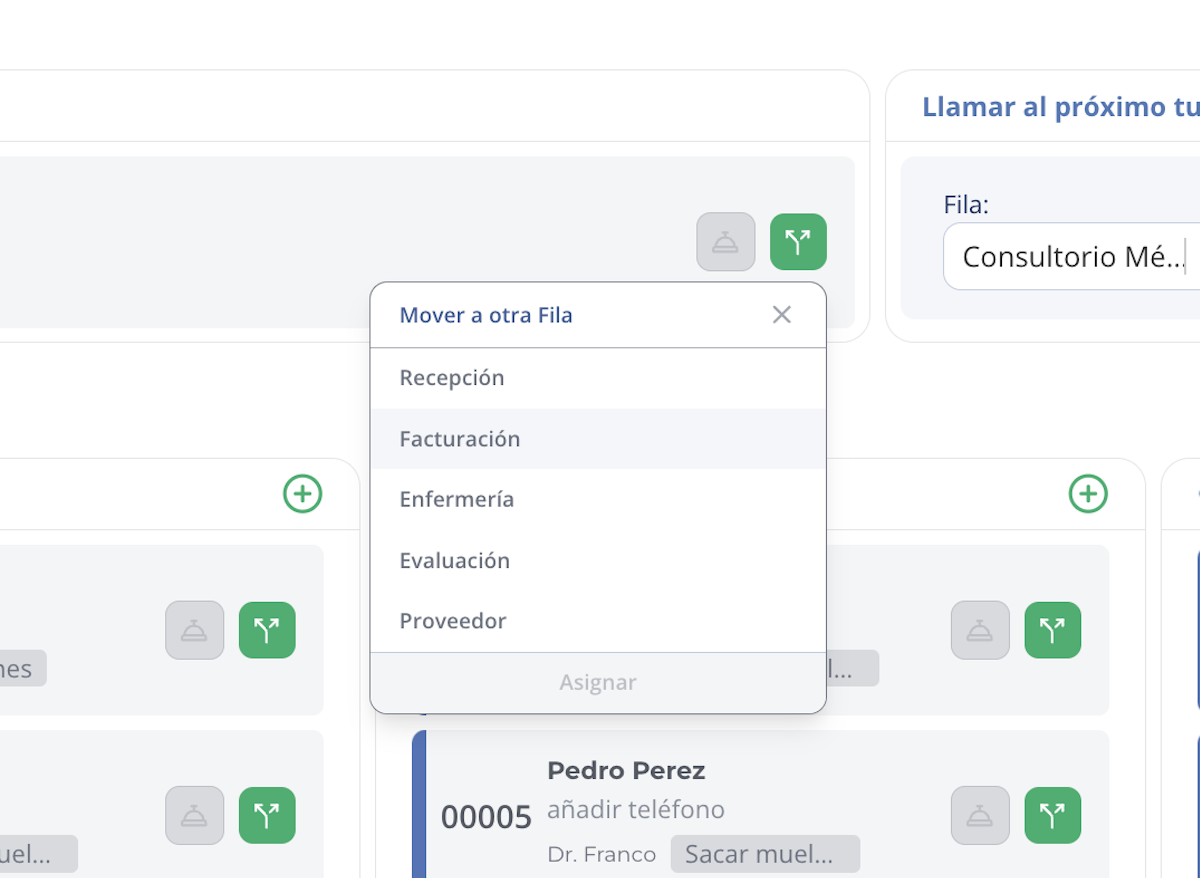
5. Confirm assignment
Press the Assign button to complete the action and officially move the patient to the new queue.
Summary
- Call the patient to the attending station.
- Confirm their arrival with the Arrived button.
- Use the Move to Another Queue option to redirect them.
- Select the destination queue and confirm with Assign.
This flow allows a patient to complete different stages of care within your institution in an orderly and efficient manner.
Related articles